


 Share on media


When you have a lot to say but the page keeps getting longer, FAQ sections pile up, product detail pages start scrolling forever, and service pages turn into walls of text that nobody actually reads all the way through. That is exactly the kind of problem a drop down info plugin for WordPress is built to solve.
This guide breaks down what these plugins are, why they matter, what features to look for, and how to set one up; step by step.
What Is Drop Down Info Plugin in WordPress?
A drop-down info plugin for WordPress adds expandable and collapsible content sections to your pages and posts. When you click on a heading, the content underneath slides open. Click it again and it folds back.
The words accordion, toggle, and dropdown are used interchangeably, but they are slightly different. An accordion groups multiple sections together, and opening one typically closes the others. A toggle is a standalone section that opens and closes on its own. Knowing the difference helps you pick the right format. FAQ pages work best as accordions, and a single shipping disclaimer suits a toggle.
Why WordPress Websites Use Drop Down Info Plugins
There are several reasons why modern WordPress websites rely on drop down info plugins to improve content organization and user experience.
Cleaner Reading Experience: When visitors land on a structured list of collapsed sections instead of a wall of text, the page immediately feels more manageable. That clear perception reduces bounce rate even before anyone clicks anything.
Better Mobile Experience: Long pages feel exhausting on mobile phones. A well-built drop-down layout converts the entire page to a clean list of headings. This allows visitors to tap only what interests them. More than half of web traffic comes from mobile, this is why it is essential to use drop down info plugins for WordPress in 2026.
Stronger Engagement Signals: Sites that replace static long-form layouts with accordion structures consistently see users spending more time on their page. Rather than just scrolling passively, visitors click around, explore various sections, and interact. These are the behavioral signals that Google tracks while evaluating quality.
SEO and Accessibility Benefits: There are modern plugins that support FAQ schema. This lets your content appear as expandable rich snippers directly in search results. Well-built plugins also support keyboard navigation and screen reader announcements, keeping your site WCAG compliant. And if you prefer handling SEO more manually, WordPress SEO without a plugin is also a practical option that works well alongside accordion-based structured content.
Types of Drop Down Info Plugins for WordPress
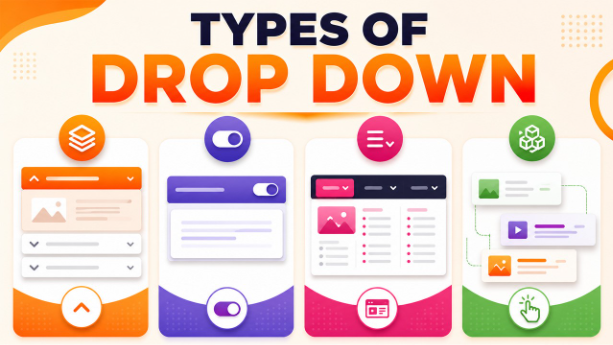
The drop-down plugin space covers a few distinct categories and knowing which type you need saves time.
Accordion Plugins
These are the most common types. It stacks multiple expandable sections vertically, typically with only one section open at a time. They are best for FAQ pages, feature breakdowns, and documentation. Easy Accordion, Accordion FAQ by Quantum Cloud, and Heroic FAQs are among the most established options here.
Toggle Plugins
They reveal a single section rather than groups. If you only need to hide one block of text such as a disclaimer, a footnote, a term of service excerpt; a toggle plugin is often cleaner and lighter than a full accordion solution. Shortcodes Ultimate is one such example that includes a reliable toggle component.
Mega Menu Dropdown Plugins
It serves a different purpose entirely. These plugins handle site navigation menus rather than page content. Max Mega Menu and UberMenu are the two most widely used options in this category.
Interactive Content Plugins
They are the most advanced tier. These go beyond simple expand and collapse with animated reveals, multi-level accordion structures, image-driven dropdowns, and conditional logic. Unlimited Elements for Elementor and JetTabs by Crocoblock are good representatives of this category.
Key Features to Look for in Drop Down Info Plugins
Before choosing a drop down info plugin for WordPress, it is important to understand which features actually improve usability, SEO, and performance.
- Page Builder Compatibility: Make sure to confirm it works with Gutenberg, Elementor, Divi, or whatever builder you use. A plugin that ships only with shortcodes and no native block or widget creates unnecessary friction.
For a broader look at how WordPress has improved plugin support over time, check out WordPress 6.5 new plugin capabilities.
- Responsive Design: Older plugins often break on smaller screens. You must always test the demo on a real mobile device, not just a desktop preview.
- Custom Styling Options: Rather than colors, icon style, topography, and animation speed, look for plugins that offer control. A plugin that locks down this feature forces you to write custom CSS every time.
- FAQ Schema Support: Non-negotiable for FAQ pages. Run the output through Google’s Rich Results Test to confirm that the schema is actually working; don’t just take the plugin’s word for it.
- Lightweight Performance: Some plugins load hundreds of kilobytes of JavaScript just to collapse a few sections. Look for plugins that load scripts only on pages where an accordion is present.
- Accessibility Features: Keyboard navigation, ARIA labels, and screen reader announcements are baseline requirements. If the accordion can’t be operated with a keyboard alone, the plugin has a fundamental usability gap.
How to Set Up Drop Down Info Plugin in WordPress
Setting up a drop down info plugin for WordPress is straightforward when you follow the right configuration steps from the beginning.
- Choose the Right Plugin: Check the last updated date, active install count, support quality, and compatibility with your page builder. A recently updated plugin with 80,000 installs beats an untouched one with 600,000.
- Install and Activate: Go to Plugins → Add New, search for your chosen plugin, and click Install Now, then Activate. For premium plugins, upload the zip file via Plugins → Add New → Upload Plugin. While you’re in the plugins area, it’s also worth using a WordPress plugin to clean up old themes to keep your site running light and fast.
- Configure Global Settings: Set defaults for animation style, icon type, and whether multiple sections can be open at once. Getting this right globally saves you tweaking every individual instance later.
- Add Your Content Sections: Insert the accordion block in Gutenberg or dragthe widget in Elementor. Give each section a clear title and fill in the body content.
- Style the Accordion: Adjust colors, fonts, border styles, and animation timing. Keep it subtle because heavily styled accordion bars distract from the content inside.
- Test Before Publishing: Check on browsers like Chrome, Firefox, and Safari. Test on a real phone. Confirm that keyboard navigation works. Run the URL through Google’s Rich Results Test if you’re using FAQ schema.
Best Drop Down Info Plugins for WordPress
Not all accordion plugins offer the same performance, SEO support, or customization, which is why choosing the right one matters.
| Plugin | Best For | Schema Support | Free Version? |
| Easy Accordion | FAQ pages, general content | Yes | Yes |
| Ultimate FAQ | Dedicated FAQ sections | Yes (Pro) | Yes |
| Heroic FAQs | SEO-focused FAQ with analytics | Yes | No |
| Unlimited Elements | Elementor versatility | Partial | Yes |
| JetTabs by Crocoblock | Tabs and accordions combined | Partial | No |
Best Use Cases of Drop Down Info Plugin for WordPress
Here are some of the most practical ways businesses and content-heavy websites use drop down info plugins in WordPress.
FAQ Pages: It is the most common use case. Twenty questions in a collapsed accordion are far better to read than twenty questions stacked in a single scroll.
E-commerce Product Pages: Many businesses design their product pages like shipping policy, return window, and size guide in a way, so each collapse neatly and keeps the main product content at front.
Service and Agency Pages: Process steps, deliverables, pricing tiers organized into dropdowns so visitors can explore without feeling overwhelmed. Service pages often work even better when paired with the best WordPress booking plugin to turn that engagement into actual appointments.
Knowledge Base Articles: Long articles become far more scannable when subsections are collapsed by default. This makes readers spend more time on your page.
Landing Pages: Feature sections that sometimes push the page to an uncomfortable length can sit in compact, expandable blocks.
Note: Do not use drop down info plugins if your page is already concise. In such cases, adding drop-down creates unnecessary friction. Use these tools when there is genuinely a lot of content to organize.
Common Mistakes to Avoid When Using Drop Down Info Plugins
Even the best drop down info plugin for WordPress can hurt usability and SEO if implemented incorrectly.
Collapsing Important Content: Dropdown sections are used for secondary information. If your main value proposition is hidden behind a click, it will impact your conversions negatively.
Too Many Dropdowns on One Page: If there are 15 accordions in a row, it still considers cluttering, just in a different format. You can group all related content logically or check whether some of the content belongs to a separate page.
Skipping Accessibility and Mobile Testing: Tab through every section with only your keyboard. And test on a real phone as what looks clean at 1440px wide can become a mess at 390px.
Choosing a Heavy Plugin: Some plugins add significant weight to your page. Run a speed test before and after installing any accordion plugin to measure the real impact. If your Core Web Vitals scores drop noticeably, it’s worth looking for a lighter alternative. Plugins not working in WordPress is one of the most common issues site owners run into, but it is fixable.
Conclusion
The right drop down info plugin for WordPress significantly improves the experience for every visitor who lands on your content-heavy page. When pages feel cleaner, mobile visitors have an easier time. These plugins make engagement go up and with the correct schema setup, your FAQ content starts earning its space in search results without extra effort.
Remember that the key is choosing a plugin that fits your stack, configuring it for real visitors rather than aesthetics, and not overdoing it. Start with one page, set it up properly, test it on your phone, measure the results, and then make a final decision.