


 Share on media


You must have gone through this at least once in your life, where you waited for a website to load and felt like giving up midway before it even showed up. It happens with a lot of WordPress sites, too. Google has made a free tool called PageSpeed Insights, which is used to find out how slow or fast your site is. When you type in your website’s link and hit enter, it scores your website out of 100, along with the list of reasons why your site might be loading slowly.
However, that list is full of confusing words like “Largest Contentful Paint” or “Cumulative Layout Shift” and if you’ve never built a website before, these terms will not make any sense to you. But don’t worry, this guide will explain what all of it means in plain, simple language and show you exactly how to fix it, step by step.
What Is Google PageSpeed Insights for WordPress?
PageSpeed Insights is a free tool offered by Google. It analyzes any webpage and scores it based on how fast it loads and how smoothly it runs once it’s loaded. It matters a lot, especially for WordPress sites, as they rely on themes, plugins, and backend codes that can affect the website’s performance if it’s not managed well.
This tool breaks your site’s performance into a set of measurements called Core Web Vitals. It is Google’s way of measuring what a “good” user experience actually feels like. Slow load times reflect poorly on your website, frustrate your users, and hurt your search rankings too. A fast-loading site performs better and keeps people around.
Core Web Vitals Explained: What Every WordPress Site Should Know
Before getting into fixes, it helps to know what you’re actually being scored on. Here’s the short version.
| Metric | What It Measures | Good Score |
| Largest Contentful Paint (LCP) | How fast the biggest visible element loads | Under 2.5 seconds |
| First Input Delay (FID) | How quickly the site responds to a click or tap | Under 100 milliseconds |
| Cumulative Layout Shift (CLS) | How much the page jumps around while loading | Below 0.1 |
| Interaction to Next Paint (INP) | How smoothly the page reacts after interaction | Lower is better |
| First Contentful Paint (FCP) | Time until the first bit of content appears | As fast as possible |
| Time to First Byte (TTFB) | How fast your server responds to the first request | Lower is better |
These six numbers together make Google’s report card for your site’s user experience.
Best Tools to Fix PageSpeed Insights Errors in WordPress
You don’t need multiple expensive software to figure out what is wrong with your website. The PageSpeed Insights tool along with a free website speed test like GTmetrix will tell you almost everything you need to know. You just have to type in your website URL, both tools then scan your site and give you a list of things that have been dragging your score down.
Once you find out what’s broken, next comes how to actually fix it. Below are the types of problems that you’re likely to encounter and how to fix them.
Optimize JavaScript and CSS for Faster WordPress Performance
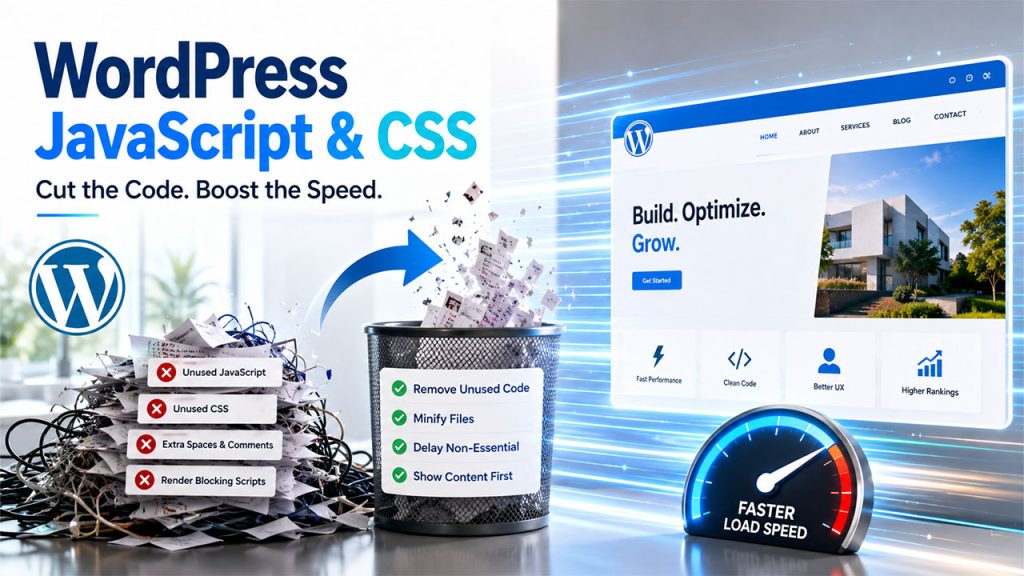
JavaScript and CSS are responsible for building the structure and interactivity of your pages. However, they are also common reasons behind your slow scores. A theme or plugin loads extra code on pages which are not necessary.
What to do:
- Remove JavaScript that your site isn’t actually using. It cuts down on unnecessary requests.
- Strip out unused CSS rules and delay loading anything that isn’t essential right away.
- Minify your JavaScript and CSS files, which just means remove extra spaces and comments so make the files smaller and faster.
- Make sure your page shows visible content first, instead of making visitors wait for every script to finish loading before they see anything.
Reduce Server Response Time (TTFB) in WordPress
When someone visits your site, their browser sends a request to your server and waits for a response. Taking too long to process that request delays everything else no matter how optimized the rest of your page is.
What to do :
- Use a lightweight, well-coded theme instead of one stuffed with features you’ll never touch.
- Set up server-side caching, so repeat visits don’t require the server to rebuild the page from scratch every time.
- Consider upgrading your hosting plan if your current one simply can’t keep up. Sometimes it’s your server that is the problem, not your code.
This is also where a slow DNS lookup tends to hide. Before your browser can even talk to your server, it has to translate your domain name into an IP address, and if that step drags, your whole site feels sluggish before a single byte of content loads.
Optimize Images to Improve PageSpeed Insights Score

Images are usually the single biggest contributor to page weight. For instance, if your blog post has a handful of photos that are not optimized, it can easily double or triple its load time compared to one with properly sized images.
What to do :
- Compress your images before uploading them. Use tools like TinyPNG shrink file size without any visible quality loss.
- Resize images to the actual dimensions they’ll display at, instead of uploading a massive file and letting the browser scale it down.
- Use a content delivery network to serve images from a server physically closer to your visitor, which shaves real time off load speed.
- Switch to modern formats like WebP, which compress far better than older formats like JPEG or PNG.
Enable Browser Caching to Speed Up Your WordPress Site
Browser caching stores some specific files such as images, CSS, JavaScript directly in a visitor’s browser, so their device doesn’t have to re-download everything each time they come back. It is one of the most common reasons why website loads slowly.
What to do:
- It reduces the load on your server, since fewer files need to be delivered fresh each visit.
- Returning visitors experience noticeably faster load times, since cached files pull from local storage instead of your server.
- You can set expiration dates on cached files, so they refresh periodically without forcing a full re-download every visit.
If you’ve tried all of this and your WordPress website slow performance still hasn’t improved much, take a step back and check if it’s a structural issue like your hosting environment or a conflict between your plugins rather than any single error that PageSpeed Insights flagged.
Conclusion
By fixing PageSpeed Insights errors, we don’t mean you have to score perfect 100. This number is not as important as how your site actually feels to your real visitor. You must fix the root cause, not just its symptoms. A site that’s slow due to a sluggish server needs a completely different fix than one weighed down by oversized images, and confusing the two just wastes your time.
Work through the categories one at a time, and you’ll likely see your score climb without ever having to touch even a single line of code. And if you still feel stuck, bring in an experienced WordPress developer to handle the trickier server-side fixes. Sometimes, it is the fastest path to a faster site.
Frequently Asked Questions :
Q. What is a good PageSpeed Insights score for WordPress?
Anything above 90 is considered excellent, though scores in the 70s and 80s are still perfectly workable for most sites.
Q. Do I need plugins to fix PageSpeed Insights errors?
No. most fixes, like image compression, minification, and caching, can be done manually or through your hosting provider.
Q. Why does my WordPress site score low even with a fast theme?
Often it comes down to unoptimized images, too many active plugins, or a slow server response time rather than the theme itself.
Q. Does PageSpeed Insights measure mobile and desktop separately?
Yes, it gives you two separate scores, since mobile devices typically load pages more slowly than desktops.
Q. Can a slow DNS lookup affect my PageSpeed score?
Yes. if your domain takes too long to resolve to your server’s IP address, it delays everything else on the page, including your Time to First Byte.