


 Share on media


If you’ve ever clicked on your own WordPress site and been met with a blank “504 Gateway Timeout” message instead of your homepage, you know exactly how alarming that moment feels. A 504 error does not mean anything is wrong on your side, but rather is a signal that your server had to wait for too long and gave up.
Fortunately, fixing this problem will usually be easy, and you do not have to be an experienced programmer to do it.
In this blog, we are going to explore the meaning of a 504 error, the causes behind this problem occurring on WordPress websites, steps to eliminate the issue by yourself, and some tips on how to prevent the error from recurring.
What Is a 504 Error?
A 504 error is also known as the “504 Gateway Timeout”. In a nutshell, this issue is characterized by one of the servers being used as a mediator, failing to receive an answer from the hosting server that contains the site data. As a result, it displays an error message to the user instead of allowing them to access the site.
This may be compared to the situation when you order food using an online app and the app sends your request to the restaurant kitchen but doesn’t receive a timely response, and the order gets cancelled due to a delay by the restaurant staff, although everything works well on both the customer’s and the app’s sides. The same situation is taking place: your computer, gateway server, and hosting server are communicating, and at some point in time, one of them fails to receive a prompt answer.
It should be noted that in 99% of cases, a 504 error does not depend on the visitor and his/her gadget and connection, but it is an issue between servers; thus, the solution lies on the site’s side.
Common Causes of a 504 Error
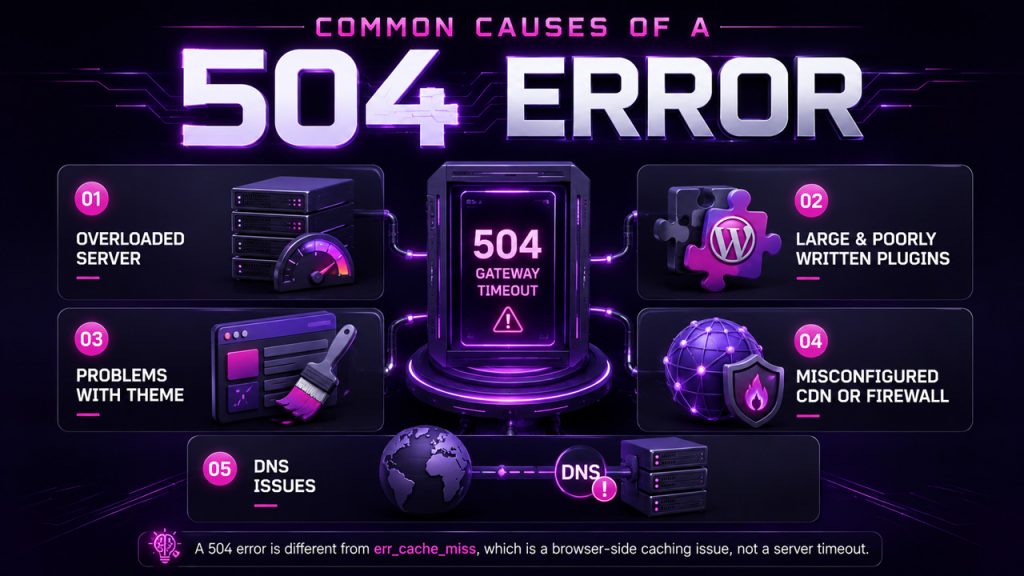
Before fixing anything, it helps to know what’s actually going wrong behind the scenes. A 504 error on WordPress usually traces back to one of these:
Overloaded server:
A sudden influx of visitors, or a noisy neighbour stealing server resources via shared hosting, can make your server too busy to answer in due time.
Large and poorly written plugins:
The slow and complicated operation performed by a plugin can use up all available processing time in WordPress, leading to a timeout.
Problems with the theme:
Bloated and poorly coded theme files can create the same problem as poor plugins.
Misconfigured CDN or firewall:
Your CDN may not be able to connect to the server where your website is hosted, while your firewall may incorrectly block your website’s traffic.
DNS issues:
If you have switched to a new web host and failed to update DNS records properly, your website might still be using the old server’s IP address.
It’s worth mentioning that a 504 is a completely different issue from something like an err_cache_miss error, which is a browser-side caching problem rather than a server timeout, so if you’re troubleshooting and seeing mixed symptoms, it helps to know which one you’re actually dealing with before diving into fixes.
How to fix a 504 Error in WordPress
Let’s move to the troubleshooting process you need to follow, beginning with Step 1.
- Step 1: Refresh the page
This solution might seem overly simplistic at first, but a temporary overload of your hosting servers is more common than you think. Give it some time and try reloading after that.
- Step 2: Check in an incognito window
If it works there, chances are that the 504-gateway timeout problem is related to your browser’s cache or an extension, and not to your server itself.
- Step 3: Deactivate all plugins, then reactivate one by one
This is the most reliable way to find the culprit of a 504-gateway timeout. Deactivate everything, check if the error’s gone, then turn plugins back on one at a time until it returns. Whichever plugin brings the error back is your problem plugin.
- Step 4: Switch to the default WordPress theme temporarily
If disabling your plugins didn’t help you to resolve the problem, the source of it might be a theme that you have installed on your website.
- Step 5: Temporarily disable your CDN service
In case your website uses Cloudflare, temporarily disabling the service will route all your traffic directly to the host of your website.
- Step 6: Look at server resources
Log in to your hosting control panel and check the CPU and memory usage. If they are maxed out, it means you need to upgrade your hosting plan to accommodate the traffic.
- Step 7: Inspect your DNS settings
If you changed hosts recently, you need to make sure that your domain points to the new server IP address.
- Step 8: Call your host
If all else fails, contact your host and tell them everything you’ve done. It will help you get a more informative response as compared to just reporting the problem.
How to Prevent 504 Errors in the Future
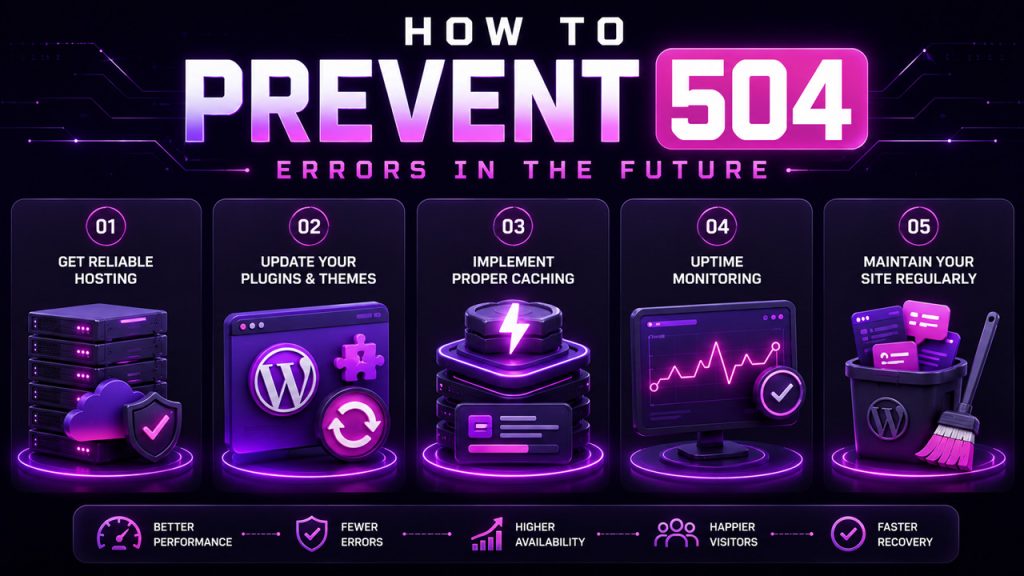
While fixing a 504 error once may help you, doing so while ensuring that it doesn’t return is always the way to go. Here are some practices to consider:
Get reliable hosting :
Many 504 errors occur because of poor-quality hosting services where resources are not enough to handle the high traffic.
Update your plugins and themes :
Updates often fix various problems, so an outdated plugin that has been unused for several months may be a cause of your problem.
Implement proper caching :
Caching will reduce the number of requests that need to be processed by your server, thus reducing the chances of a timeout error occurring.
Uptime monitoring :
With a monitoring tool, you’ll immediately know when your website goes down so that you can take action before many of your users face the issue.
Maintain your site regularly :
This tip concerns not only performance optimization but also digital cleanliness. For example, if your site gets filled with spam over time, you should know how to delete WordPress comments in bulk.
None of this guarantees a 504 error will never happen again, but it significantly lowers the odds and makes troubleshooting faster if one ever does show up.
Conclusion
While a 504 error is certainly annoying, it is not quite as catastrophic as it appears to be. The 504 error is a definite indicator of some overload, configuration problem, or timeout at the server-to-server communication level, and in most cases, it is an issue that is easily solvable on your own.
First, start with the easy tests, such as refreshing and clearing the cache, and then move on to checking plugins and themes, as most 504 WordPress errors can be solved through those steps. In most cases, you won’t even need to go further than that.
The greatest advantage of all, however, comes in preventing 504 errors rather than fixing them after the fact. Good hosting, up-to-date plugins, and regular website maintenance should do the trick.
Frequently Asked Questions
Not really, no. A 504 error points to a server communication issue, whether that's your hosting, a plugin, or a misconfigured CDN, not something you did wrong as a user.
Both are gateway errors, but they mean different things. A 502 means the gateway got an invalid response from the server. A 504 means it got no response at all within the allowed time.
Yes, absolutely. A plugin running a slow or complex process can eat up all the processing time WordPress allows, which triggers the timeout and results in the error.
It depends on the cause. A temporary traffic spike might clear in minutes. A deeper issue, like a bad plugin or underpowered hosting, will continue until it's actually fixed.
It can help with certain causes, like long-running scripts, but it won't fix everything. If the real issue is an overloaded server or a firewall block, increasing timeout limits alone won't solve it.