


 Share on media
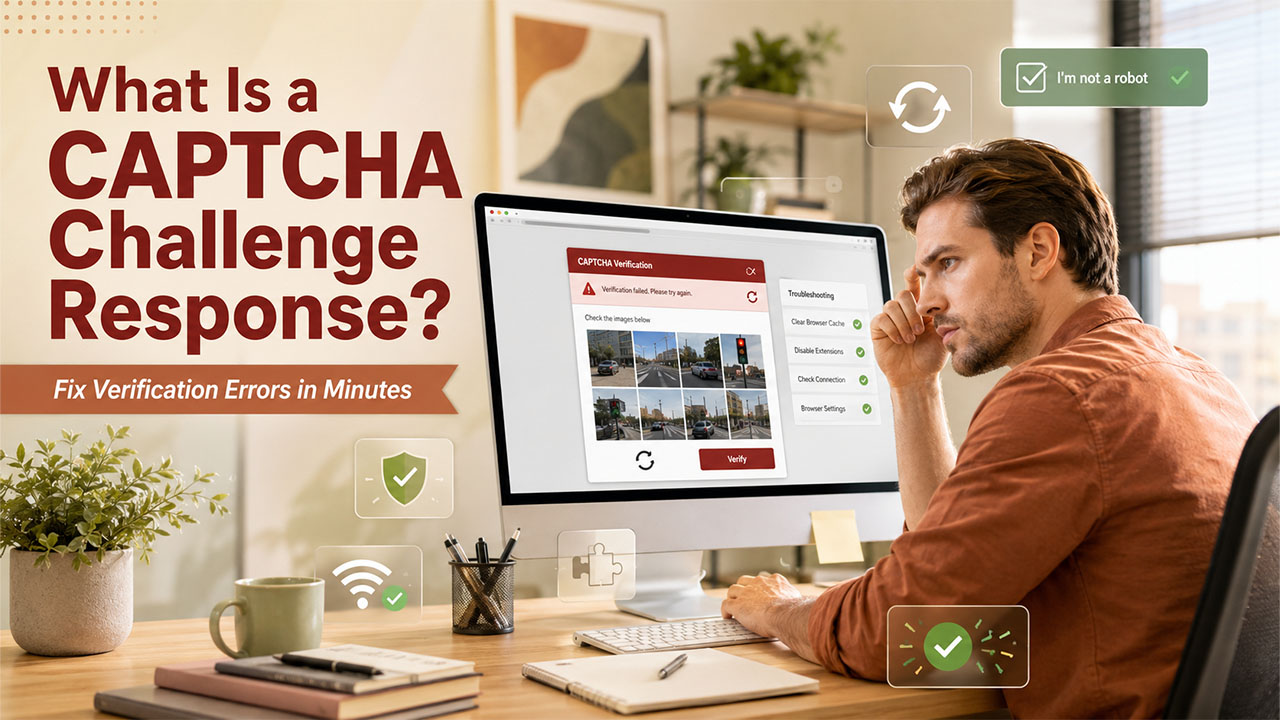


CAPTCHA errors can be a frustrating experience for all users. It can stop you in the middle of the login process or in the middle of the checkout process due to a broken verification box. One moment you can be filling out a form and in the next moment, the page freezes and refuses to move ahead. Before you can know what is a CAPTCHA challenge response, and more significantly, how to resolve a CAPTCHA issue within a few minutes.
CAPTCHA errors are quite common, and, in most cases, they are not an indication that anything is seriously wrong with the website or your device. They are often caused by fixable or small issues on the server or browser side. In this guide, let us break down the common causes and understand a few practical and quick solutions, so you do not have to waste time staring at a frozen checkbox.
CAPTCHA Challenge Response- Basics You Should Know
What is a CAPTCHA challenge response? Well, it refers to a verification step a website utilizes to confirm that the person interacting with the website is human, not an automated bot. CAPTCHA stands for Completely Automated Public Turing Test to Tell Computers and Humans Apart. So, when you are asked by the CAPTCHA box to select bicycles, retype the distorted text, solve a math or pattern-based problem, or just click on the confirmation box “I am not a robot,” you are essentially completing a challenge response.
The system operates in two components:
- The Challenge – It can be anything like an image set, a puzzle, or a checkbox shown to the user.
- The response – The action or answer sent to the server of the website for verification.
If the response aligns with what the system expects, access is provided to the user. If it does not, or if the verification process itself cannot be completed, you will observe a CAPTCHA error instead of going forward.
Websites rely on this process to block spam submissions, prevent automated account creation, and stop brute-force login attempts. It’s a small extra step, but it plays a meaningful role in overall site security.
Why Do CAPTCHA Not Working Issues Happen?
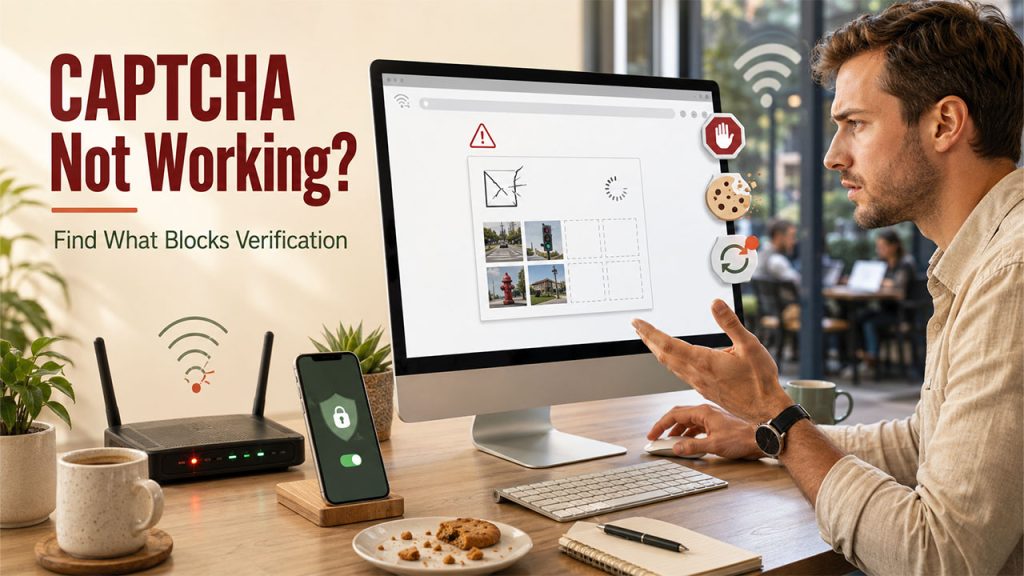
Before jumping into fixes, it helps to understand why a CAPTCHA suddenly stops responding. Most CAPTCHA not working situations trace back to one of the following:
- Browser cache or cookie conflicts – Corrupted or outdated cookies can interfere with how the CAPTCHA script loads.
- Ad blockers or privacy extensions – Tools designed to block trackers sometimes block the CAPTCHA script itself.
- VPN or proxy usage – Many CAPTCHA systems flag VPN traffic as suspicious, triggering repeated challenges or outright failures.
- Unstable internet connections – A weak or dropping connection can prevent the challenge from loading or submitting correctly.
- Shared or public IP addresses – If many users are on the same IP, such as public Wi-Fi, the system may treat the traffic as bot-like.
- Outdated browser versions – Older browsers may not support the scripts CAPTCHA providers utilize.
In some cases, a CAPTCHA error is a symptom of wider connectivity issues. If your CAPTCHA does not load at all, and you are also observing browser warnings, it is worth checking out whether you are facing the ERR_CONNECTION_RESET Error, since a broken connection can avoid verification scripts from loading properly in the first place.
How to Quickly Resolve CAPTCHA Issue?
Most CAPTCHA issues can be resolved in just a few minutes through the steps given below:
- Refresh the CAPTCHA: Select the small icon next to the challenge to create a new challenge. This alone fixes most of the temporary glitches.
- Clear Your Browser Cookies and Cache: Corrupted local information is one of the most common issues that lead to a stuck CAPTCHA.
- Disable Browser Extensions and Ad Blockers: Try out turning off script blockers or privacy tools temporarily, and after that refresh the page.
- Switch browsers. If the problem is not solved, you will have to try out a different browser to rule out a local conflict in configuration.
- Check Your Connection Strength or Speed: An unstable or weak connection can stop you from correctly submitting the response.
- Switch off Your Virtual Private Network: Numerous verifications easily identify proxy traffic or VPNs, which can lead to repeated failures.
- Ensure Browser Updates: Launching an outdated version can stop CAPTCHA scripts from rendering at all.
If you handle a WordPress website and CAPTCHA errors are occurring across your website, the issue might be deeper in your site setup instead of the visitor’s browser.
When the Problem Is in Your Website, Not the Browser of the Visitor?
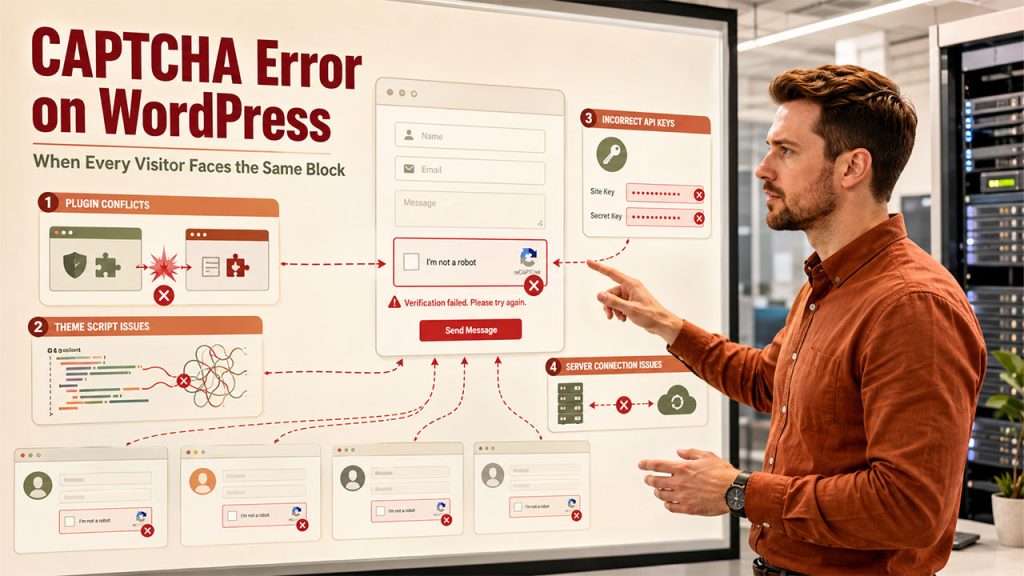
If numerous visitors are reporting a similar CAPTCHA error, the problem is likely coming from your website instead of individual devices. Common causes across the website are as follows:
- Plugin Conflicts – A form or security plugin might clash with your CAPTCHA integration.
- Script Issues Related to Theme: There are some themes that load scripts in a way that interferes with the rendering of your CAPTCHA. In such cases, performing steps to Fix WordPress Theme conflicts, like temporarily switching to a default theme, can aid in isolating the issue.
- Incorrect API keys – Similar tools and Google reCAPTCHA need a valid website as well as secret keys; mismatched or expired keys can break verification for everyone.
- Connection Issues Across the Server – If your hosting server cannot communicate with the servers of the CAPTCHA, the challenge will fail to verify or fail to load itself.
Try disabling a few plugins one at a time and confirming that your API keys stay current often quickly narrows down the problem.
Conclusion
A CAPTCHA error can be frustrating as it is an unnecessary roadblock. However, you can easily solve it once you know where to look. Whether the solution is as straightforward as refreshing as clearing your cache or refreshing the challenge, or as complex as checking for plugin conflicts on a WordPress website, understanding what a CAPTCHA challenge response is is a good point. Bookmark this page and try the above-mentioned troubleshooting steps next time you see a CAPTCHA not working message. Knowing the cause of the CAPTCHA issue can enable you to fix the issue soon and resume your work in no time.