


 Share on media
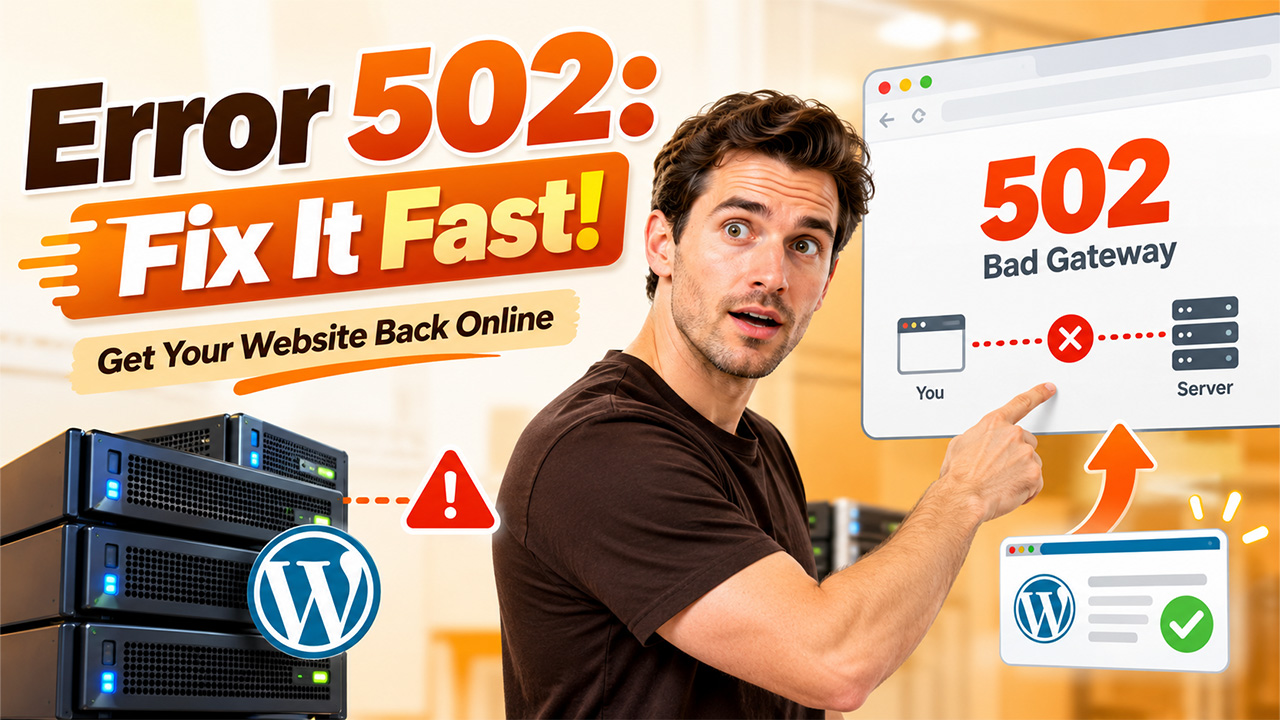


A site that goes down unexpectedly can be impactful for your users, sales, and even your SEO performance. WP users see a message in the browser about error 502, a Bad Gateway, when one server is acting as a gateway or proxy and receives an invalid response from an upstream server. This can be caused by a variety of issues including, server problems, excessive traffic, issues with a plugin, and a server not talking to its proxy. Spotting the root of the problem can help you get your site back up and running without making useless changes.
What Is Error 502?
Error 502 (Bad Gateway) occurs when there is an invalid response from the incoming server. For example, the reverse proxy returns a host which received a request from the browser, and the server that hosts WordPress has returned a non-transparent reply.
WordPress doesn’t always cause this error. It may be the hosting server, the PHP processing step, the content delivery network, or another intermediary between the visitor and the site. Wherever it is, visitors can be presented with a blank error page, a message from the hosting provider, or a Cloudflare-branded message.
Common Causes of Error 502
Many technical issues can disrupt communication between WordPress and the server. Starting to diagnose when the issue began can help exclude the cause.
Server Heavy Activity or Hosting Issues
A server may not be able to handle a sudden workload due to an increase in traffic, insufficient resources or a service crash. When there are too few resources, shared hosting may also have performance problems.
Broken Plugins or Themes
A conflicting plugin, an out-of-date theme, or custom PHP code can also cause fatal errors or a server error response. The latter is more likely when the problem begins when you update or install a website. If you suspect a plugin conflict, follow this guide on fixing a plugin not working in WordPress to identify and troubleshoot the issue.
PHP Processing Errors
WordPress utilizes PHP to produce the pages, but a web server will not receive a response if PHP-FPM stops responding, all PHP workers are exhausted, or your application generates a fatal error.
CDN or Proxy Connection Failure
A CDN, like Cloudflare, is a network that exists between a site’s visitors and its origin server. This connection can be severed because of misconfiguration, firewall rules, or an origin server producing malformed responses.
502 vs 503 vs 504: What’s the difference?
These are the same HTTP status codes for server errors. This is how you know what you need to use for the right fix. You can also read the guide to fix error 504 in WordPress.
| Error code | Meaning | Common cause |
| 502 Bad Gateway | A gateway receives an invalid response from an upstream server. | Proxy connection failure or an application server problem. |
| 503 Service Unavailable | The server cannot handle the request temporarily. | Maintenance, overload, or unavailable services. |
| 504 Gateway Timeout | A gateway does not receive a timely response from an upstream server. | Slow processing, network delays, or an unresponsive origin. |
How to Fix Error 502 in WordPress?
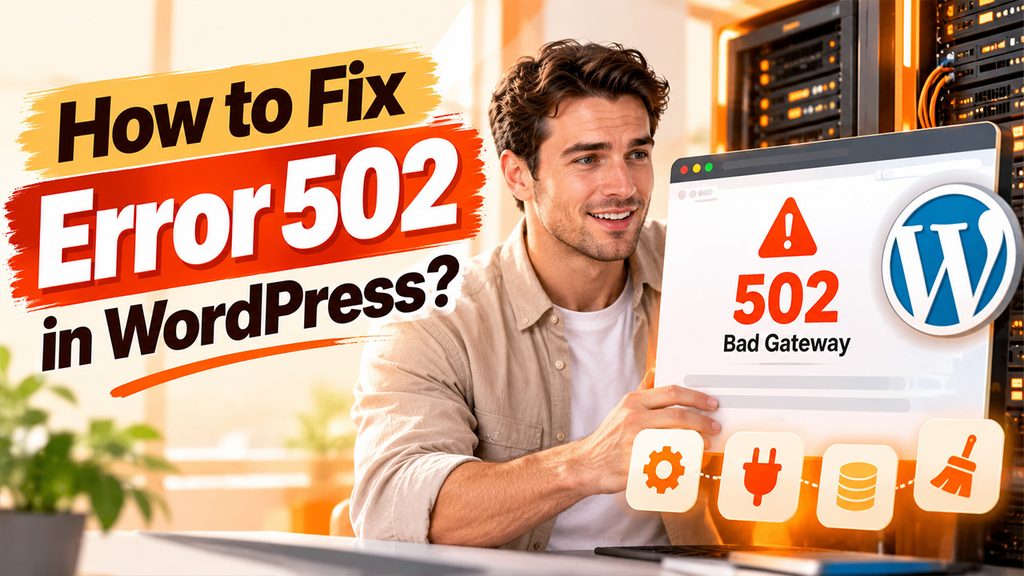
Before attempting any of the following fixes, be sure to try a few simple things first; don’t dive straight into editing files or the server configuration. If you use a CDN, make sure to check if the error occurs at the origin or is introduced by an intermediary.
The following procedures require you to make changes to your website and/or servers.
Reload the Page and Check Status
Wait for a minute and refresh the page, then try opening the site in a private window and on a different network if possible. If there are multiple pages breaking or the problem occurs on different networks, focus on the server rather than the client.
Clear Caches
Clear your browser cache and CDN cache (if you have one). Occasionally, cached HTML responses may keep the error up, but clearing the cache will not ‘fix’ a faulty origin server.
Disable Plugins
If you cannot access the dashboard, try disabling all the plugins. You should be able to access the wp-content directory from the hosting provider’s file manager or SFTP. Rename plugins.php to plugins-disabled (or something similar) and reload the page.
Use the Default Theme
If the plugins are not the issue, try disabling them and using the default WordPress theme. You can do this from the staging environment if your server has one. If you cannot access the dashboard, a developer can rename the theme directory using SFTP or the hosting file manager. The theme should be reactivated after testing, and any potential compatibility issues should be diagnosed.
Server Logs and PHP Settings
Check the PHP and web server error logs in the hosting control panel. They have more information about the cause, PHP fatal errors, unavailable PHP workers, too many open files, or a connection refused error. If the problem is with PHP memory, the host may want to increase the memory limit if the site is consuming too much.
Conclusion
Typically, an Error 502 notification seen on a WordPress site indicates a problem of communication between servers rather than just an issue attributed to one WordPress setting. Start by making sure the problem is not temporary, and if it is not, check the plugins and themes being used, PHP logs, hosting resources, as well as the CDN connection to find the problem. It is advisable to make one change and test the website after each change. If the server fails to provide the correct response after trying different changes, then reaching out to the hosting provider with the details of the error is the best idea.
Frequently Asked Questions
Not by nature. The source of the issue could be from the hosting server, PHP service, CDN, proxy, or a plugin that hinders server operations.
Yes. You may consult your hosting control panel, check logs, clear CDN caches or temporarily disable plugins using a file manager or SFTP. For help in case of server inaccessibility, connect with your host.
Continuous downtime can prevent search engine crawlers from opening your pages and affect crawling if prolonged. Fix the recurrent issues as soon as possible and monitor the site’s presence online.
A temporary server issue may be resolved within minutes. Plugin conflicts or configuration problems can take longer, depending on the cause and your access to hosting logs and support.