


 Share on media
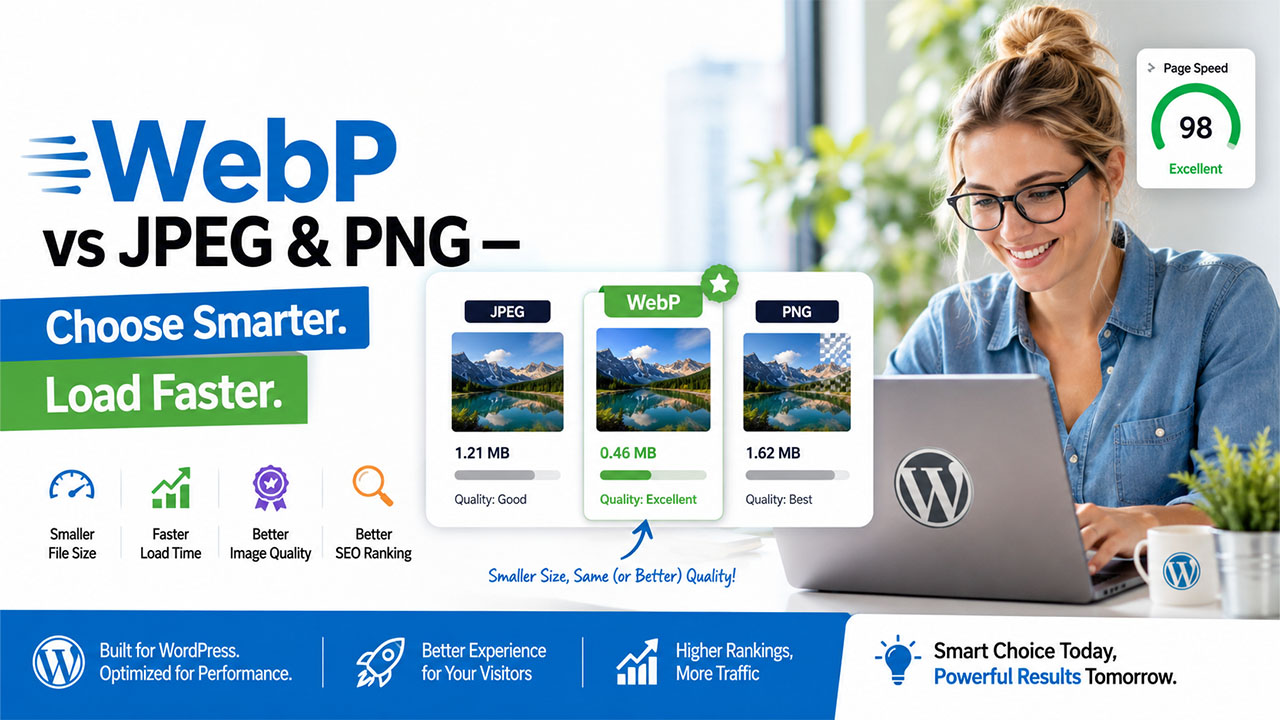


Ever uploaded a photo to your WordPress site and watched your page load time crawl to a stop? Chances are, the image format is the culprit, and this is exactly where WebP comes into the conversation. It’s a newer image format built specifically to solve the problem older formats like JPEG and PNG were never designed to handle, keeping images sharp while keeping file sizes small.
Most website owners don’t even give a thought to their image formats when they upload an image to their site. However, that one decision that you’re making right now will impact your page loading speed, your SEO, and even image quality after compression. Not choosing the correct format won’t kill your site’s performance, but choosing the right format is definitely one of the easiest ways to improve it.
In this blog, we’ll walk through what WebP actually is, how it stacks up against JPEG and PNG, and which format makes the most sense depending on what you’re uploading.
What Is WebP?
WebP is an image format developed by Google, built to replace the aging trio of JPEG, PNG, and GIF with something more efficient for the modern web. What makes it different is flexibility; it supports both lossy compressions, similar to JPEG, and lossless compression, similar to PNG, all in one format.
This is rare for a file format, since most formats are created for specific purposes, like JPEG for photos and PNG for graphics. However, WebP manages to perform both of them and still be compatible with transparency and animation features, which cannot be used in JPEG and PNG individually.
JPEG has been the photography standard since the 90s, while PNG’s lossless compression made it the go-to for logos and screenshots. WordPress now supports WebP out of the box, and there is no need for a plugin anymore to use it.
WebP vs JPEG vs PNG: Feature Comparison
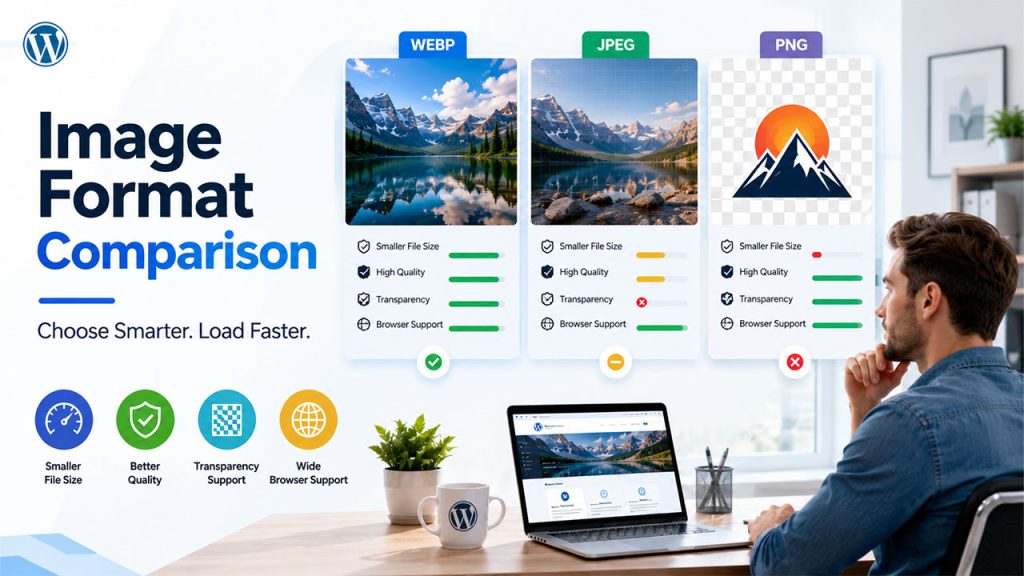
This is really the heart of the whole comparison, so it’s worth going through each factor properly rather than skimming past it.
File Size
This is where the WebP image format files pull ahead the most. Compared to JPEG, WebP images typically come in 25-34% smaller at a similar visual quality, and against PNG, the gap is around 26% smaller on average. For a single image, that might not sound like much, but across a media library with hundreds of images, that difference adds up to real load time savings, and load time is something both visitors and Google notice.
Compression Type
This is what causes heavily compressed JPEGs to be blurry, and if you already have a photo that has gone soft, an AI tool can help you unblur image files and bring back some of the lost sharpness. PNG stands at the opposite end, since it can use only lossless compression, so it will never lose any information. This makes PNG files bigger in size than JPEGs, but in exchange gives you better quality. WebP is an outlier in this case since it can use both forms of compression in one format.
Transparency
PNG has traditionally been a format for transparent images; that is why logos and icons are stored as PNG files so often. JPEG does not have any way to create as many transparent images as PNG.
Browser Support
All three formats render fine across every major modern browser, Chrome, Firefox, Safari, and Edge included. The only real gap is with a small number of outdated browsers that still don’t recognize WebP, though this is becoming less of a concern every year as those browsers fade out of use.
Best Use Case
JPEG remains a strong choice for photographic and colourful images where minor loss of image quality may not matter. PNG is still a good option for logos, screen captures, and any other situation in which sharp edges or transparency matters. WebP is the file format that does both things well enough, which is why it is becoming the new default file format for websites.
Put together, this is really the deciding factor for most of the comparisons ahead: WebP isn’t a smaller JPEG or a lighter PNG; it’s built to genuinely replace both.
WebP vs JPEG: Which Wins for Photos
For photographers, and everyone else uploading pictures heavy on the colours, this test counts.
JPEG has reigned as the king of photography for decades, and for very good reasons too; it allows for millions of colours in the photos while keeping the files relatively small for its level of detail. The downside is that lossy compression will mean that after reaching some threshold of compression, the image will start to look fuzzy and contain noticeable blocks, especially around the edges or any text in a picture.
WebP vs JPEG comes down to one thing: efficiency. This means that you can choose whether to maintain the same file size but have a higher quality photo or reduce the file size even further without losing any visible quality.
When it comes to portfolios, photo blogs, or other instances where high-quality images are taking up the entire page, the result is faster page load without sacrificing quality at all. For most modern WordPress sites, though, WebP is simply the more efficient version of what JPEG already does well.
WebP vs PNG: Which Wins for Graphics and Logos
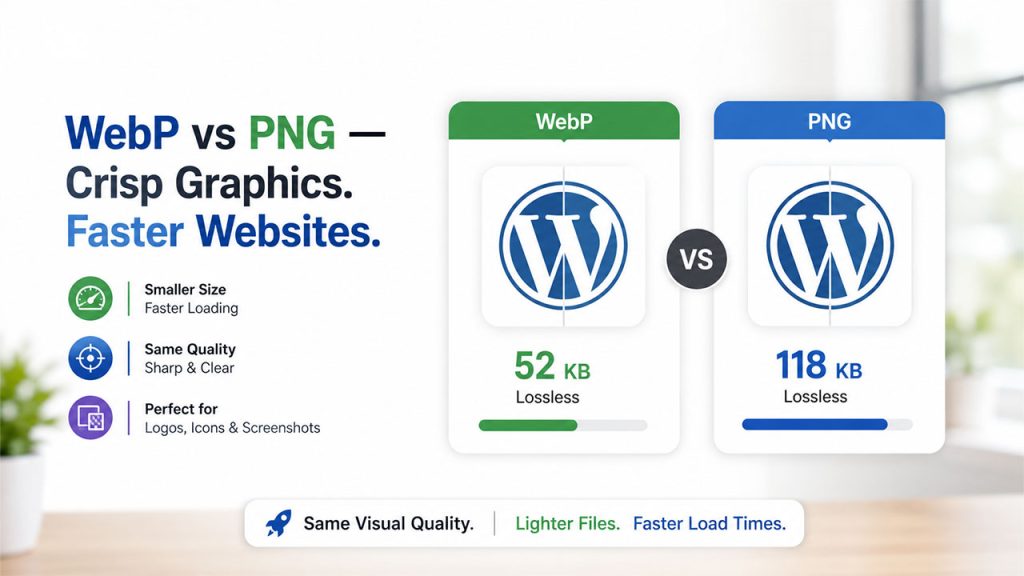
For logos, icons, screenshots, and anything with sharp lines or flat colours, this comparison plays out a little differently.
PNG has earned its reputation because of the lossless compression feature; once you compress PNGs, there will not be a single bit of the original image information lost. This is precisely why PNG is used as a standard format for logos and screenshots, where any blurred edges and shifting pixels can be visible. When you need to make sure that your file was not tampered with after compression or transmission, then you use a checksum, which works using the very same mechanism that makes lossless formats reliable for copying.
WebP vs PNG is all about efficiency, and not about quality, as the WebP format is capable of providing lossless compression just like PNG and also has the same transparency features.
For a website logo or a batch of screenshots, that size reduction might feel minor per file, but across an entire site’s graphics, especially icons and UI elements repeated on every page, it adds up to a real difference in how fast pages load.
But for anyone optimizing seriously for speed, WebP delivers the same visual precision at a meaningfully lighter weight.
Which Format Should You Use in WordPress?
After going through all the comparisons, here’s the simple version, broken down by what you’re actually uploading:
JPEG for: Photographs and other colour-rich images where some minor compression losses don’t matter.
PNG for: Logos, icons, and any other image which needs a transparent background or perfectly sharp lines.
WebP for: Everything else. It does both things pretty decently at significantly lower file size.
In most cases, when it comes to WordPress sites, the easiest way to go about this would be using an image optimization plugin that converts your uploaded image into WebP automatically and serves it to users, offering the usual JPEG/PNG fallbacks as a backup in case someone uses an older browser.
Of course, if you are a developer and would prefer dealing with this issue through scripting, then this is fine too, though you’ll have to familiarize yourself with this area via Top Programming Tutorials first, if this is something you’ve never dealt with before.
Regardless of whether you do this with a plugin or through programming, the outcome is the same.
Conclusion
At the end of the day, WebP isn’t trying to replace JPEG and PNG out of novelty; it’s solving a problem both of them have carried for decades, forcing you to choose between quality and file size. WebP mostly removes that trade-off, giving you smaller files without the quality hit you’d expect.
This does not mean that JPEG and PNG will soon become obsolete. Both of them remain as effective as before: JPEG stays relevant for photography while PNG is still preferable in the case of logos and graphics with transparency. However, in the majority of cases of common usage on a WordPress website, WebP is going to be the go-to format due to its size advantages and quality preservation.
If speed matters to your site, and it should, switching to WebP, even with a simple plugin handling the conversion, is one of the easier wins available without touching your design or content at all.
Frequently Asked Questions
For most cases, yes. WebP offers smaller file sizes than both formats while matching PNG’s transparency and staying close to JPEG’s visual quality, making it the more efficient all-around choice.
Yes. WordPress added native WebP support, so you can upload WebP files directly without needing a plugin, unlike a few years ago when plugins were required.
Rarely. Most modern browsers fully support WebP. A small number of outdated browsers don’t, but plugins can automatically serve a JPEG or PNG fallback instead.
Generally yes, especially through an optimization plugin. It automatically converts existing images and serves WebP to supported browsers, improving site speed without manual effort.
Yes. WebP supports animation natively, with significantly smaller file sizes than GIFs, making it a genuinely better option for animated content on modern websites.