


 Share on media



Whenever browsing a website, if you have faced a blank screen or an unfamiliar error message, then there is a good possibility that you are facing 500 Internal Server Error. Across all HTTP status codes on the web, not only is it one of the most common, but it is also quite frustrating given the fact that it gives very little information about what is wrong. Irrespective of whether you are a website owner, a developer, or an end user, comprehending the 500 Internal Server Error meaning is your first step toward solving it efficiently.
This guide encompasses all critical sections that cover what this error is, what causes it, how it impacts your website, and the most efficient ways to resolve it.
Understanding 500 Internal Server Error
A 500 Internal Server Error can be defined as HTTP status codes that indicates that the server came up with an unexpected condition that prevented it from finishing a request. In other terms, something is incorrect on the server side. However, the server cannot identify the error or communicate the accurate nature of the problem.
This makes 500 Internal Server Error emerge as a generic catch-call response. Contrary to other HTTP error codes that point to a particular issue (like 404 for a missing page), the 500-status code is like a message from the server saying: something has failed, but I cannot tell you what exactly.
Specifically, this is a server-side error. It is not related to the user’s device, browser, or internet connection. The problem has emerged entirely within the web server or the app running it.
Contrary to DNS-based errors like DNS_PROBE_FINISHED_NXDOMAIN where the browser cannot even locate the server; a 500 internal server error implies that the server was found but did not process the request.
Common Message Variations
As per the hosting environment or platform, you may look at this error message being displayed in various ways:
- 500 Internal Server Error
- The server encountered an internal error and was unable to complete your request
- HTTP Error 500
- 500. That’s an error
- Temporary Error (500)
All such messages signal the same underlying issue — a failure on the server side.
Common 500 Internal Server Error Causes
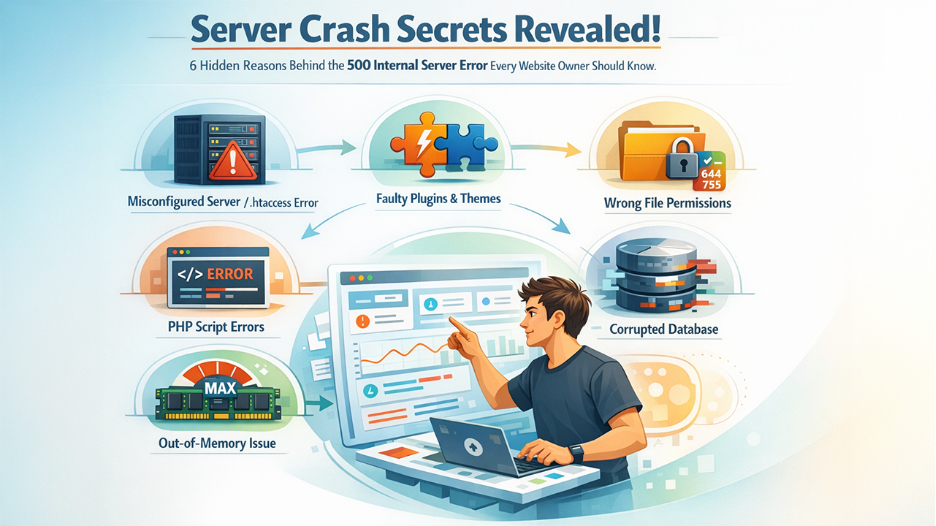
Since the 500 Internal Server Error is a generic catch-all code, it can emerge from a broad range of server-side problems. Here are the main causes observed most frequently:
1. Application Files or Misconfigured Server
One of the most common triggers is a misconfigured .htaccess file, specifically on Apache-driven servers. An invalid directive or syntax error in this file can instantly cause a 500 Internal Server Error. At the same time, incorrect files in server configuration files can create the same output.
2. Incompatible or Faulty Plugins and Themes
On CMS such as WordPress, an outdated or poor coded theme or plugin can conflict with the server environment, causing the error. This is one of the leading issues of 500 Internal Server Error in WordPress-driven websites.
3. Insufficient File Permissions
Web servers need particular directory and file permissions. Incorrect permissions — generally caused by FTP transfers or manual file edits can result in a 500-server error. Files generally need a permission setting of 644, while directories need 755.
4. Script or PHP Errors
Unmanaged exceptions, fatal issues in PHP scripts, or broken custom code are some of the culprits. For instance, a PHP script that fails to connect to a database or calls for an undefined function can create a 500 Internal Server Error instantly upon implementation.
5. Out-of-Memory (OOM) Issues
When a server no longer has available memory to process a request, it can return a 500 Internal Server Error. This is specifically common on shared hosting ecosystems with strict memory limits or at the time of traffic spikes.
6. Corrupted Database
An improperly configured or corrupted database can also cause 500 errors. In WordPress, incorrect credentials in databases in the wp-config.php file are the main source of this failure.
Why You Shouldn’t Ignore a 500 Internal Server Error
A 500 Internal Server Error isn’t just a temporary website issue—it can have a lasting impact on your site’s performance, user experience, and online reputation. When visitors encounter this error, they can’t access the page they need, which often leads them to leave your website and look for alternatives. If the problem continues, it can increase your bounce rate, reduce visitor trust, and negatively affect conversions.
Ignoring this error can also influence your website’s SEO over time. Search engines expect websites to provide a consistent browsing experience, and repeated server errors may make it harder for search engine bots to crawl and index your pages effectively. As a result, important content may not perform as well in search results if the issue remains unresolved.
Instead of repeatedly refreshing the page, it’s better to identify the underlying cause as soon as possible. Checking server logs, reviewing recent plugin or theme updates, verifying file permissions, and investigating Runtime Errors can help you locate the source of the problem more quickly. Addressing the issue early minimizes downtime, protects your website’s credibility, and ensures visitors continue to enjoy a reliable browsing experience.
What Is the Impact of a 500 Internal Server Error on Your Website?
A 500 internal server error can no longer just be categorized as a technical issue — it can ensure an observable impact on user experience, performance of website, user experience, and search visibility.
- Poor User Experience: Visitors who face a 500 server error cannot access the page, and there is a high chance that they will leave immediately, causing bounce rate.
- SEO Impact: Search engine crawlers that face a 500 Internal Server Error repeatedly can impact your content indexing, possibly minimizing the visibility of your page in search results.
- Risk of Deindexing: If a page returns a 500-status code consistently, search engines such as Google may permanently or temporarily deindex it.
- Loss of Revenue and Trust: For service or e-commerce platforms, even short downtime caused by this error can lead to brand credibility damage or lost transactions.
Provided such implications, promptly solving the 500 Internal Server Error is vital for ensuring user trust and site health.
How to Resolve a 500 Internal Server Error?
Fixing a 500 Internal Server Error needs a methodical approach, as the root cause can significantly vary. Readers who are new to working with code will find that practicing the best coding challenges for beginners builds the technical instincts that make troubleshooting errors like this much easier. Implement such steps to diagnose and resolve the problem:
Step 1: Check Logs in Server Error
The quickest way to recognize the cause of a 500 Internal Server Error is to review the error logs of your server. Most hosting control panels (like cPanel) ensure accessibility to error logs under the hosting dashboard. Find the particular file or line that caused the failure.
Step 2: Assess and Repair the .htaccess File
Temporarily disable .htaccess file or disable it and then reload the website. If the error disappears, then .htaccess file is possibly the main cause. Recreate it from your CMS settings or manually improve the correctness of the syntax.
Step 3: Deactivate Themes and Plugins
For WordPress websites, individually disable all plugins and transition to a default theme to isolate the component that is more problematic. Re-active every plugin one at a time, verifying the website after every activation to recognize the conflicting plugin.
Step 4: Validate File Permissions
Verify that your directories and files have the right permissions. Leverage your FTP client or hosting file to set directories to 755 and 644. Incorrect permissions are extremely frequent but can be corrected easily to fix 500 Internal Server Errors.
Step 5: Improve PHP Memory Limit
If memory exhaustion is the problem, improve the PHP memory limit by including the below-mentioned line to your wp-config.php or php.ini file:
define(‘WP_MEMORY_LIMIT’, ‘256M’);
Step 6: Repair or Restore the Database
If the corrupted database comes under suspicion, restore it from a recent backup. Validate that your database connection credentials are configured correctly, specifically in the wp-config.php file for WordPress installations.
Step 7: Clear Cache and Refresh
Sometimes a 500 Internal Server Error can be temporary. Clear your server-side catching plugins and browser cache, then you can reload your page. In a few cases, a simple page refresh fixes the problem if it was triggered by a momentary server overload.
Keep in mind that if the problem is browser-related, then users can also encounter other types of errors such as err-cache_miss.
Best Practices to Prevent a 500 Internal Server Error
While a 500 Internal Server Error can often be fixed quickly, preventing it is far better than dealing with unexpected website downtime. Following a few proactive maintenance habits can significantly reduce the chances of server-related issues.
- Keep WordPress core, themes, and plugins updated to compatible versions.
- Remove inactive plugins and themes that are no longer needed.
- Test new plugins or custom code on a staging website before applying changes to your live site.
- Schedule regular website backups so you can restore your site if something goes wrong.
- Monitor server logs to identify potential issues before they become critical.
- Choose reliable hosting with adequate server resources for your website’s traffic.
- Regularly scan your website for malware and security vulnerabilities.
- Optimize your database and clean unnecessary data to improve server performance.
Sometimes a server timeout may resemble a 500 error even though the underlying issue is different. Learning about 504 Error
Conclusion
A 500 Internal Server Error can be a generic but vital HTTP response that indicates an expected failure on the server side. From faulty plugins and misconfigured files to corrupted databases and memory problems, the causes are several, which is exactly what makes this error quite difficult to diagnose.
Comprehending the fundamentals of 500 Internal Server Error allows site owners, developers, and administrators with basic knowledge required to efficiently troubleshoot the problem. By implementing a structured diagnostic process, reviewing file permissions, checking error logs, isolating plugins, and validating database configurations, the majority of 500 internal server error can be recognized and solved without any prolonged downtime.
For consistent stability, it is advisable to track server logs proactively, ensure that the software remains updated, and ascertain consistent backups. Such practices greatly minimize the risk of facing this error and ascertaining a reliable user experience.
Related blog: 400 Bad Request Error: What It Means and How to Fix It