




 Continue with Google

 Share on media


You spend an hour setting up your Minecraft server. You installed the plugins, configured the settings, restarted the server, but the command doesn’t respond, features don’t show up or worse, the server crashes the moment it starts loading. If that sounds familiar, you are not alone. Plugins not working in Minecraft is one of the most common frustrations server administrators face, whether they are running a small private server for friends or managing a large public community.
A broken plugin is a signal or a warning that something in the relationship between your server software, Java version, plugin files, and your configuration has broken down. Once you understand that, troubleshooting becomes easier. This guide will walk you exactly through how to do that.
Why Plugins Not Working Minecraft Issues Happen
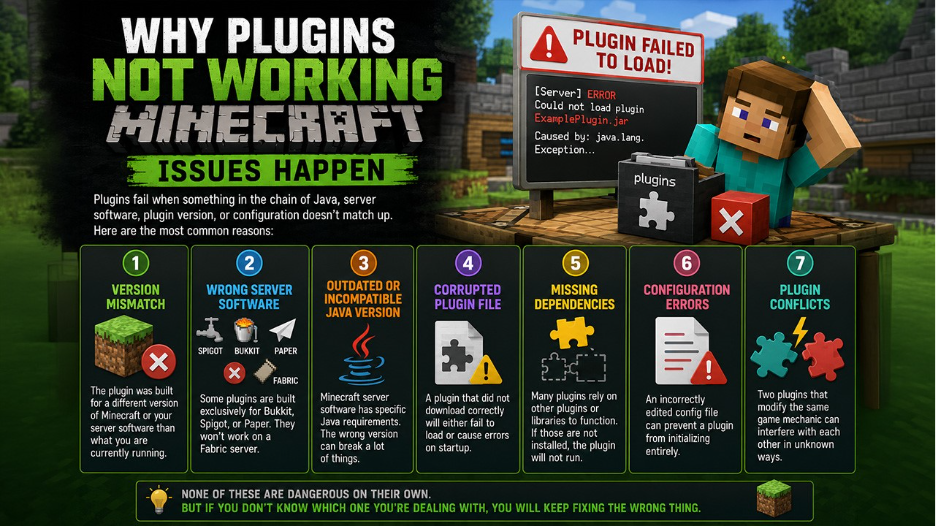
When a plugin fails to load or function, it is because somewhere in the chain of Java, server software, plugin version, configuration does not match up. Below given are the most common reasons of plugins not working in Minecraft:
- Version Mismatch: The plugin was built for a different version of Minecraft or your server software than what you are currently running.
- Wrong Server Software: There are some plugins that are built exclusively for Bukkit, Spigot, or Paper. Installing a Spigot-only plugin on a Fabric server will not work, no matter how many times you restart. If you are running a modded environment, understanding how to install a Fantasy MC Fabric server correctly from the start helps avoid these mismatches entirely.
- Outdated or Incompatible Java Version: Minecraft server software has specific Java requirements. So, when you run the wrong version, it breaks a lot of things.
- Corrupted Plugin File: A plugin that did not download correctly will either fail to load or cause errors on startup.
- Missing Dependencies: Many plugins rely on other plugins or libraries to function. If those are not installed, the plugin will not run.
- Configuration Errors: An incorrectly edited config file can prevent a plugin from initializing entirely.
- Plugin Conflicts: Two plugins that modify the same game mechanic can interfere with each other in the ways unknown.
None of these are dangerous on their own. But if you do not know which one you’re dealing with, you will keep fixing the wrong thing.
How to Diagnose Plugins Not Working Minecraft Servers
This is what people want to finish as soon as possible. Sometimes, reinstalling the plugin and restarting works but most often, it does not. The right starting point is always the server log.
Check the Minecraft Server Log First
Your server generates a log every time it starts. This file is usually located in your server folder as logs/latest.log. It contains a detailed record of everything that happened during startup, including every plugin that was loaded successfully and the ones that did not.
When plugins are not working in Minecraft, the log will almost always tell you why. To find out, look for the lines that contain words like error, failed, could not loa or exception. These are your entry points, so, do not ignore them just because they look technical. Even a partial understanding of this can point you in the right direction.
For example, a line saying a plugin could not find a required class often means a missing dependency. A line about an unsupported API version means the plugin was built for a different Minecraft version. These are specific problems that can be solved, but only if you read the log first.
Minecraft Plugin Troubleshooting Checklist
Once you have looked through the log, follow these steps in order and do not skip ahead.
- Check Your Minecraft Server Software and Version: You must know exactly what you are running such as Spigot 1.20.4, Paper 1.21, or whatever it may be. This is the foundation everything else depends on. If you are also self-hosting, it is worth knowing how to change IP for a Minecraft Server when your connection details shift after configuration changes.
- Verify Minecraft Plugin Compatibility: Visit the plugin’s official page on Spigot, Modrinth, or Bukkit. Confirm that it supports your exact server version and software type.
- Check Your Java Version for Minecraft Plugins: Run java -version in your terminal. Cross-reference it with what your server software requires. If there is any mismatch here, it will cause failures that are hard to diagnose.
- Reinstall the Minecraft Plugin File: Do not assume that the file you have is clean. Download a fresh copy from the official source and replace the existing one.
- Install Required Minecraft Plugin Dependencies: Read the plugin’s documentation carefully. If it lists any required plugins or libraries, make sure those are installed and also up to date.
- Review Your Minecraft Plugin Configuration File: If the plugin has loaded before, open its configuration file and look for obvious errors such as missing values, incorrect formatting, or settings that reference files or paths that do not exist.
- Test Minecraft Plugins Individually: Temporarily remove other plugins and test whether the broken plugin works on its own. If it does, you have a conflict. Add plugins back one at a time to identify which one causes the issue.
- Check Minecraft Server File Permissions: On Linux-based servers, incorrect file permissions can prevent the server from reading plugin files entirely.
- Search Minecraft Plugin Error Messages Online: Copy the exact error from your log and search for it online. It is likely that someone else has encountered the same problem and solved it before.
- Contact the Minecraft Plugin Developer for Support: If nothing else works, contact the developer directly with your log output and a clear description of the problem. Most developers who actively maintain plugins respond to detailed and well-documented issues.
Common Plugins Not Working Minecraft Errors Explained
Here is a quick reference for errors that you are likely to encounter when Plugins not working in Minecraft, along with their most probable causes and starting point fixes.
| Error Message/ Symptom | Most Likely Cause | Where to Start |
| Plugin not appearing in / plugins list | Plugin failed to load on startup | Check log/latest.log for load errors |
| “Unknown command” when using plugin command | Plugin loaded but not functioning correctly | Check config file and dependencies |
| Server crashes on startup | Plugin conflict or corrupted file | Remove recently added plugin and test one by one |
| “Unsupported API version” in log | Plugin built for a different Minecraft version | Update plugin or downgrade server version |
| “Cannot find class” error in log | Missing dependency plugin or library | Install required dependencies listed in plugin docs |
| Plugin loads but feature do not work | Configuration error or permission issue | Review config file, check player permission nodes |
| Everything worked yesterday, but nothing today | Recent server or plugin update broke compatibility | Roll back the most recent update and test |
This table does not cover everything, but it explains the majority of situations that server admins run into on a regular basis. The key pattern to notice is that almost every problem has a specific, readable symptom in the log, which is why it is recommended to read the log first.
How to Prevent Plugins Not Working Minecraft Problems
It feels satisfying to fix the broken plugin once. However, fixing the broken plugin three months later because you did not change anything about how you manage the server is frustrating.
The admins who have the fewest plugin problems are not the ones who are best at troubleshooting. They are the ones who have built habits that prevent problems from starting in the first place. A few of those habits are worth adopting:
Keep Track of Installed Minecraft Plugins: Maintain a simple list of every plugin on your server, the server you are running and when you last updated it. This hardly takes five minutes to set up and saves hours of confusion later.
Update Minecraft Plugins Carefully: Plugins update can introduce new bugs or break compatibility with other plugins. Therefore, before updating anything, check the changelog and back up your server first.
Back Up Your Minecraft Server Before Changes: A full backup server before any plugin installation, update, or configuration change means that you can reverse a bad decision. However, without a backup, it becomes permanent.
Test Minecraft Plugins on a Staging Server First: If your server has an active player base, do not test new plugins on the live environment. You can set up a local copy and test there first. If you are running a modded setup like a Solo Leveling Reawakening Minecraft Server, staging tests become even more critical given the number of interdependent mods and plugins involved.
Read Minecraft Plugin Documentation Before Installing: There are many issues with plugins not working Minecraft that could be avoided by reading the set-up documentation before installing the plugin rather than after something breaks.
Conclusion
Minecraft server management is genuinely technical work, even when it does not feel like it. You are managing software dependencies, version compatibility, file systems, and user permissions all at once. The fact that it is disguised as a game does not make it less complex. However, complexity is not the same as chaos. When you approach plugins not working Minecraft with a calm, structured mindset starting with the log, checking the obvious things first, and isolating variables; what felt overwhelming starts to feel manageable. The server always tells you what went wrong; you just have to know where to start.