




 Continue with Google

 Share on media



Learn how to change the SQL Server System Admin with the step-by-step guide, which takes you through the process of changing or modifying the SQL Server system administrator
From onboarding a new Database Administrator (or DBA) to improving the security of the database, changing the SQL Server system administrator is an essential, but sensitive task. There are three main methods of changing the SQL Server system administrator, which include changing via SSMS, T-SQL commands, and Windows Authentication. These methods offer the users an efficient way to manage sysadmin roles, while also maintaining control over the environment.
Understanding Sysadmin Role
The SQL Server Sysadmin (or System Administrator) is a fixed server role that provides unrestricted and full control over a SQL Server instance. It allows the members to perform any activity, which includes database creation, configuration changes, and security management. The SQL Server System Administrator offers various key benefits to users, like enhanced security capabilities and streamlined maintenance through automation tools.
Key Functionality of SQL Server Sysadmin
- The SQL Server Sysadmin offers its members to bypass all permission checks.
- If the sysadmin connects to any database on the instance, it is automatically mapped to the dbo owner.
- The sysadmin role includes all permissions granted to every other fixed server role.
Key Capabilities of SQL Server Sysadmin:
- Only an existing sysadmin has the power to add or remove a member from the sysadmin itself.
- A sysadmin can create, drop, alter, or restore any database on the server.
- The sysadmin can execute operating system commands.
- Sysadmin has the authority to change server-wide configuration settings and shut down any instance.
Key Considerations Before Changing SQL Server System Admin
The process of changing the SQL Server System Administrator requires careful planning, to prevent any type of service disruption or security gaps. Before changing the SQL server system admin, it is essential to create a new and dedicated Sysadmin account, prior to disabling the old one. It is also important to update all SQL agent jobs, along with auditing service account permissions, and updating documentation.
Some of the key considerations include:
- Creating a New Administrator: It is essential not to change or disable the default SA account without creating a new SA first.
- Update SQL Server Agent Job: Before making any changes in the SQL Server system admin, you need to review all scheduled tasks, especially those that are running under the context of the old SA account.
- Audit Linked Server: Before changing the SQL Server system admin, you also need to check all the linked servers that use SQL Server authentication.
- Verify Permission: It is important to ensure that the new administrator account has all the necessary local admin rights on the server.
Methods to Change SQL Server System Admin
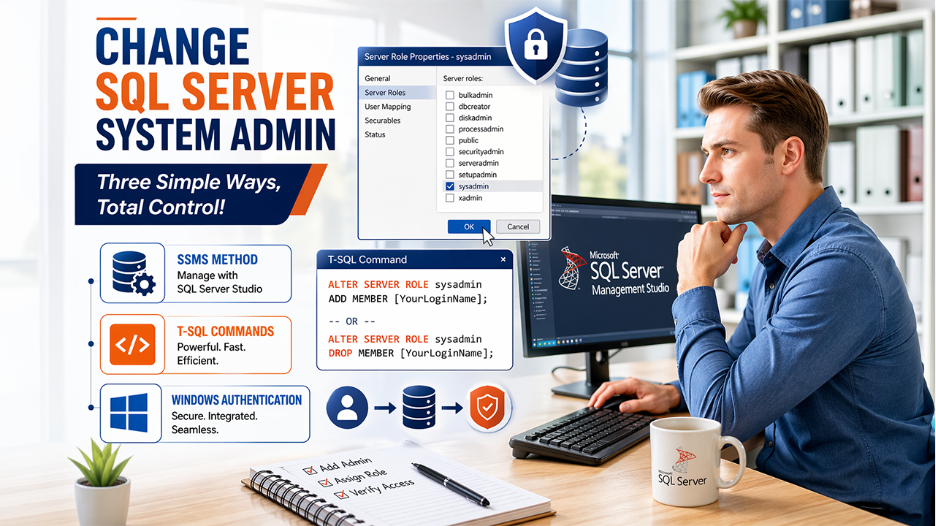
The process of changing the SQL Server system administrator (sysadmin) generally involves adding the sysadmin role to a new user. There are three main methods of changing the SQL server system admin, which include using SQL Server Management Studio, using t-SQL commands, and changing via Windows Authentication.
Using SQL Server Management Studio (SSMS)
The process to change SQL Server system admin using SQL Server Management Studio includes the following steps:
- Step 1: Connect to your database engine using the account that already has the right to admin.
- Step 2: Navigate to Object Explorer, expand the Security folder, and expand Logins.
- Step 3: Right-click the specific user you want to promote and select Properties.
- Step 4: From the left sidebar, select a page and click on “Server Roles“.
- Step 5: In the right-hand list, check the sysadmin box.
- Step 6: Click on “OK” to apply changes.
Using T-SQL Commands
The SQL Server Management Studio method to change SQL Server system admin includes the following steps:
- To add a Sysadmin, use the following command:
- ALTER SERVER ROLE sysadmin ADD MEMBER [YourLoginName];
- To remove a Sysadmin, use the following command:
- ALTER SERVER ROLE sysadmin DROP MEMBER [YourLoginName];
- To verifying role membership, use the following command:
SELECT
sp.name AS LoginName,
sp.type_desc AS LoginType,
slr.role_principal_id
FROM sys.server_role_members slr
JOIN sys.server_principals sp
ON slr.member_principal_id = sp.principal_id
WHERE slr.role_principal_id = SUSER_ID(‘sysadmin’);
Changing via Windows Authentication
Changing SQL Server system admin via Windows Authentication includes:
- Step 1: Use Windows Authentication to “Connect” to the server instance.
- Step 2: In “Object Explorer“, expand the “Security” folder.
- Step 3: Right-click on Logins and select “New Logins“.
- Step 4: Enter the username of Windows in “DOMAIN\username” format.
- Step 5: Click on “OK“.
Key Security Considerations while Changing SQL Server System Admin
The process of changing the SQL Server system admin or sysadmin involves a higher operational risk, which involves critical identity and access management updates. Some of the primary security considerations for changing the SQL Server system admin are as follows:
Authentication & Account Hardening:
- It is recommended that the default system administrator login be disabled while changing the SQL Server system administrator.
- Enable CHECK_POLICY and CHECK_EXPIRATION to enforce operating system-level complexity for any new SQL-based logins.
- It is recommended to use Windows Authentication or Microsoft Entra ID by Microsoft over any standard SQL Authentication.
- Securing administrative access is critical not just for databases but across platforms. Similar principles apply when managing CMS platforms (explore this guide on How to Secure a WordPress Site to understand broader security best practices).
Privileged Access Management:
- It is best to avoid granting the sysadmin role to all database administrators.
- It is recommended to use individual Windows logins for each DBA.
- The sysadmin’s duties should be limited to the OS level.
Monitoring and Auditing:
- Configuring SQL Server to log both the failed and the successful logins is also essential while changing the SQL Server sysadmin.
- Use the SQL Server Audit to specifically monitor the server_role_member_change_group.
Read Also: Database Management System: Types, Features, and Why Your Business Needs One
Benefits and Limitations of Changing SQL Server System Admin
Benefits of SQL Server System Admin
Some of the key benefits of the SQL Server System Administrator include:
- Administrative and Technical Benefits:
- Full Instance Control- The SQL Server System Administrator allows the administrator to perform any activity on the server. It also includes managing logins, configuring server properties, and creating or removing a database.
- Performance Optimization- The administrator can access various tools to identify bottlenecks and apply automatic tuning.
- Centralized Management- The administrator can manage dozens of local and cloud-based instances from a single graphical interface.
- Security and Continuity Benefits:
- Enhance Security Management- Through SQL Server System Admin, the administrator can enforce the “principle of least privilege”, without granting full sysadmin rights to all users.
- Business Continuity- The administrator also has the authority to configure high-availability solutions, to ensure 24×7 uptime.
Limitations of SQL Server System Admin
The SQL Server System Admin or sysadmin offers various major limitations, which include:
- Security Limitations:
- Irreversibility of Denial- A major security limitation of a sysadmin is that the user cannot prevent a member of the administrator’s role from accessing any data.
- Data Visibility- The sysadmin can access data even after encryption, unless specific technologies are used to keep keys away from the database administrator.
- Stability Risks:
- Instance-Wide Impact- A small or single change made by the administrator can lead to performance degradation or downtime.
- Resource Contention- The sysadmin accounts can run runaway jobs, that impacts the stability of the entire server.
In Conclusion
SQL Server system admin, in the context of Microsoft SQL Server, refers to the sysadmin fixed server role, which provides the highest level of administrative authority over a SQL Server instance. The sysadmin role is a fixed and server-level role, which grants the user unrestricted access to perform any activity within the specific SQL Server instance. There are various methods of changing the SQL System server admin, among which, changing using SQL Server Management Studio, T-SQL Command, and Windows Authentication are the most recommended methods. There are also various key considerations before making any changes, like ensuring access and backing up all the configurations.
Related Post
500 Internal Server Error Meaning: Causes, Impact, and How to Fix It
Client Access Server: Functions, Architecture, and Role in Microsoft Exchange