


 Share on media



If you are a Chrome user, then you must have encountered a few (rare!) recurring problems. One such problem is cache-related, and it displays an error message that resembles this: “ERR_CACHE_MISS”.
What does this error message mean? How can you resolve it? Is it hard to resolve?
Fortunately, it is very simple to resolve this issue on your own. In this article, we will walk you through nine different solutions to help you identify the correct solution for your problem and then move on with your browsing.
What Does the err_cache_miss Error in Chrome Mean?
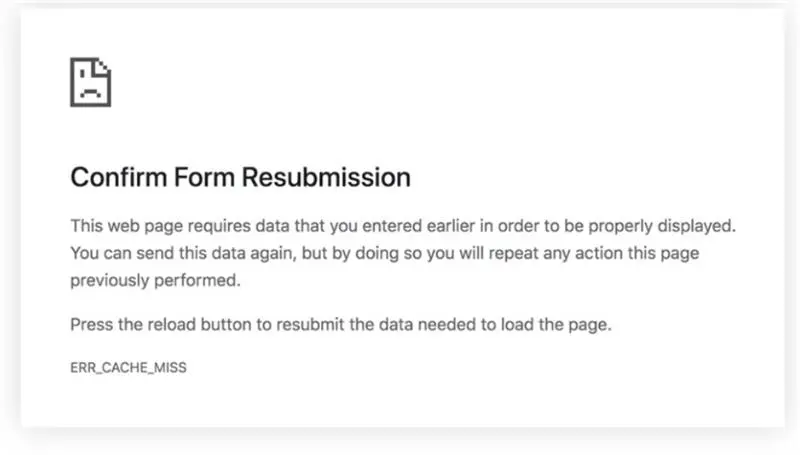
The err_cache_miss error in Chrome happens when the browser is unable to load the cached content of a webpage. This is usually caused by a number of factors, including:
- Corrupted browser cache
- Outdated browser extensions
- Incorrect browser settings
- Issues with the website
This error basically means that Chrome was unable to access the cached page of the webpage you are trying to open and therefore had to fetch a fresh copy from the server. Although it is more of a browser-related issue that can be easily fixed by simple troubleshooting, it can also be an indication of server-related issues with the website you are trying to access.
Knowledge of how to fix this error is very important for ensuring smooth browsing and optimal SERP Insights performance when accessing your website.
How to Fix the err_cache_miss Error in Chrome
Now that we know what the err_cache_miss problem is, let’s walk through 9 possible solutions:
1. Reload the Page

Before anything else, you can try reloading the page. This will solve the problem on its own.
How to reload a page in Chrome:
- Press CMD+R on Mac or SHIFT+F5 on PC
- Choose it from the menu under View Reload This Page
- If your page is frozen, hold Shift to enable Force Reload This Page
2. Close and Reopen Chrome
If this doesn’t solve the problem, you can try reloading Chrome itself. Close the program all the way (don’t just close the windows) and then open it again. Go back to the website you’re trying to visit and see if the problem is still there.
3. Disable Browser Extensions

Browser extensions are also sometimes the culprit when it comes to caching. For many accidental reasons, browser extensions can interfere with the cache or the connection between your browser and other websites.
To turn off extensions in Chrome:
- Click on More Tools Extensions in the top menu bar
- Turn off each extension by clicking on the button next to it in the bottom right corner (this should change from blue to gray)
- Try reloading the page
- If this doesn’t work, quit and relaunch Chrome itself
In some cases, Chrome may need to be restarted in order to turn off an extension.
4. Update Chrome
If you are running an older version of Chrome, it is probably the cause of the problem. To update Chrome, you need to look at the top right corner of your browser window. There, you will find a big button that says “Update.
You need to click on that button and then restart Chrome to complete the update. After that, you need to go back to your page and see if the net err_cache_miss error message still appears.
5. Clear Cache and Other Browsing Data
Clearing your cache is a quick way to reset everything and potentially fix any issues with the cache.
For Mac:
- Go to the Chrome menu item and click Clear Browsing Data
- Make sure the Cached images and files box is selected
- Press Clear data
For Windows:
- Click the three dots in the top right corner
- Click More Tools and Clear Browsing Data
- Make sure that the Cached images and files option is selected
Now visit the website. Is the err_cache_miss error still appearing?
6. Reset Google Chrome Settings
If resetting the cache didn’t work, you can also try resetting Chrome entirely.
For Mac:
- Go to Chrome Preferences
- Search for “reset settings”
- Click Restore settings to their original defaults
- Press the blue button to reset everything
For Windows:
- Click the three dots in the top right corner
- Click Settings
- Click on the Advanced tab on the left-hand side
- Click Restore all settings to their original defaults to reset Chrome
7. Delete and Reinstall Chrome
If resetting the Chrome settings didn’t work, try deleting and reinstalling Chrome itself. The exact uninstallation process will depend on what operating system you’re using:
Windows 10:
- Close all Chrome tabs and windows
- Click Start menu and Settings
- Click Apps, find Google Chrome, and click Uninstall
- Go to Google.com/Chrome to redownload and reinstall
Mac:
- Close the Chrome app
- Go to Applications folder and find Chrome
- Drag it to the trash
- Redownload Chrome at Google.com/Chrome and reinstall
8. Disable the Browser Cache

Finally, as a last step, you can also disable the cache system entirely. To do this, you’ll need to use Chrome’s Inspect feature.
- Open the page you want to connect to
- Right click on the page and select Inspect
- Click on the Network tab (the fourth item from the left)
- Check the disabled cache box immediately below it
- Reload the page and check if the issue is gone
9. Reset Your Network Settings
Still having problems? The problem could be with your network itself. Reset your network and network settings. If you can, try to connect to a different network as well. This will help you determine if the problem is on your computer, your network, or if it is a problem with something else.
Mac OSX:
- Click on the Apple icon in the top left
- Click on System Preferences
- Find the Network icon and click it
- Select your current network and press the minus button to remove it
- Reconnect by adding in the login/password
Windows:
- Open the Start menu and go to Settings
- Navigate to Network and Internet Status
- Click Network Reset
Solving the err_cache_miss Error
Although the err_cache_miss error is quite annoying, it is actually easy to resolve if you simply attempt the various solutions mentioned in this post. Ultimately, it is a fairly common error that does not require much technical knowledge to resolve.
In this post, we have discussed nine different methods to resolve the err_cache_miss error. As the name of the error indicates, this error is triggered due to an issue with the cache system. Once the cache is reset or resolved, this error will be resolved.
It is important to understand and fix browser errors such as err_cache_miss to ensure that your website is running at its best. These solutions will not only help you but will also improve your overall SERP Insights.
Have you encountered this error while using Chrome? What solution did you find to work for you? By following these troubleshooting steps, you should be able to resolve the err_cache_miss error and get back to browsing as usual.
FAQs
What causes the err_cache_miss error in Chrome?
The err_cache_miss error is normally caused by problems associated with the Chrome cache, such as corrupted files, conflicting extensions, or improper browser settings. The error may also result from Chrome’s failure to verify the cached content or load new content from the server.
Is err_cache_miss a serious problem?
No, it’s not a serious issue and is generally easy to fix. It’s a common browser-side error that doesn’t indicate security risks or major system problems.
Will clearing my cache delete my saved passwords?
No, clearing your cache will not remove saved passwords. Cached files are stored separately, and passwords are only deleted if you explicitly select that option.
Can the err_cache_miss error affect my website’s SEO?
The error itself will not impact SEO, but repeated user experiences with the error may negatively impact user experience and bounce rates. Over time, this could have an indirect impact on performance-based SEO factors.
Do I need to try all 9 solutions to fix err_cache_miss?
No, most users resolve the issue with basic steps like reloading the page or clearing the cache. Only move to advanced fixes if simpler solutions don’t work.