


 Share on media



If you have been running a WordPress site for quite some time, you already know how fast comments can pile up, and they keep coming. If you’re wondering how to delete WordPress comments, you’re not alone. You receive all sorts of comments. Some genuine, some are spam, and some that were buried under the pile and never got reviewed. Before you realize, your comment section becomes messy and chaotic.
At first, they just feel like harmless comments but slowly they start affecting your WordPress website in ways unimaginable. Unmanaged comments slow your site down, increase security risks while making your website look neglected or inactive to anyone who visits it. However, no need to worry as cleaning them up is pretty simple once you know which method fits your situation. Whether you want to delete a single comment, bulk delete spam, or wipe everything clean, this blog covers everything you need to know.
3 Methods to Delete WordPress Comments
There is no correct way to do this. Usually, the best method depends on the comments that you’re dealing with and how smoothly you can navigate WordPress. Below given are three methods, from simplest to the most powerful.
Method 1: Using the WordPress Admin Dashboard
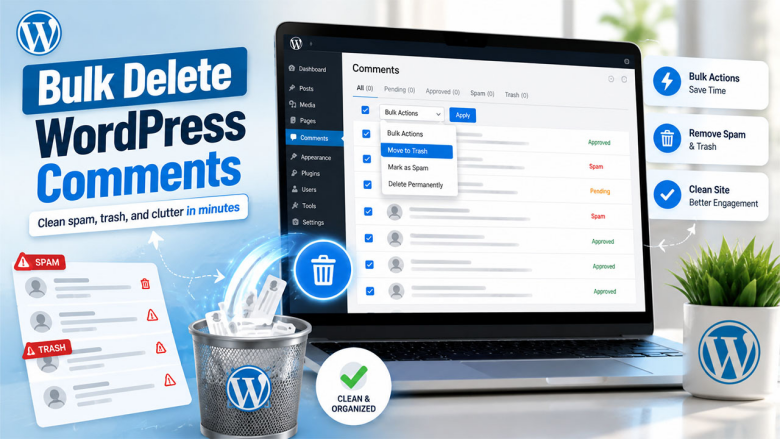
This approach is one of the simplest, and it works well for most situations whether you’re deleting one comment, a handful, or doing a bulk cleanup across your entire site.
To delete a single comment :
- Log in to your WordPress admin panel and go to Comments in the left sidebar.
- Hover over the comment you want to remove. A set of action links will appear below it.
- Click Trash to move it to the trash, or Spam if it’s a spam comment you want flagged.
- To permanently delete it, click Trash in the filter menu at the top, then select the comment and choose Delete Permanently from the bulk actions dropdown.
This is the simplest way to remove WordPress comments one at a time without touching any settings or tools.
To bulk delete comments :
It handles everything from removing a single comment to helping you bulk delete WordPress comments across your entire site in just a few steps.
- Go to Comments in your WordPress dashboard.
- Use the filter options at the top to narrow down by type — All, Pending, Approved, Spam, or Trash.
- Check the box at the top of the list to select all visible comments or manually select the ones you want.
- Open the Bulk Actions dropdown and select Move to Trash or Mark as Spam, then click Apply.
- Go to the Trash view, select all, and choose Delete Permanently to remove them for good.
Method 2: Using a Plugin

If there is a large volume of comments or if you are looking for more control over the process, using a plugin is a cleaner and faster option. There are several plugins out there that handle this well, but WP-Sweep is one of the most commonly used for this purpose.
How to delete all comments using WP-Sweep:
- Go to Plugins → Add New in your WordPress dashboard.
- Search for WP-Sweep and install it, then click Activate.
- Navigate to Tools → Sweep from your dashboard menu.
- You’ll see a list of items you can clean up, including comments by category: spam comments, trashed comments, unapproved comments, and all comments.
- Click Sweep next to the comment category you want to delete.
- Confirm the action when prompted. The plugin will process and permanently remove the selected comments.
WP-Sweep is non-destructive in the sense that it clearly shows you what it’s going to delete before it does anything. Additionally, it also handles the database cleanup at the same time, which is a bonus for site performance.
If you’re also managing customer interactions or inquiries through your site, it’s worth knowing that some WordPress CRM plugins come with built-in comment and conversation management features. They are useful if you want to handle both in one place.
Method 3: Using SQL Queries via phpMyAdminz

This method is more thorough than the others and permanent. It is for those people who want to delete all comments directly from their database. It is the most powerful option; however, it requires some care. Remember to back up your database before running any SQL queries.
How to delete all comments using phpMyAdmin:
- Log in to your web hosting control panel (cPanel or equivalent) and open phpMyAdmin.
- Select your WordPress database from the left panel.
- Click on the SQL tab at the top.
- To delete all comments and their metadata, run the following queries one at a time:
TRUNCATE TABLE wp_comments;
TRUNCATE TABLE wp_commentmeta; - Click Go to execute each query.
This wipes your comments table completely. The wp_comments table holds the actual comments, and wp_commentmeta stores associated metadata. When you clear both, there’s nothing that’s left behind.
If your WordPress database uses a custom prefix instead of wp_, replace wp_ with your actual prefix in the query. You can check this in your wp-config.php file if you’re unsure.
To delete only spam comments via SQL:
DELETE FROM wp_comments WHERE comment_approved = ‘spam’;
DELETE FROM wp_commentmeta WHERE comment_id NOT IN (SELECT comment_id FROM wp_comments);
This targets only spam entries and cleans up the associated metadata, leaving approved comments untouched.
A word of caution: SQL queries are irreversible. There’s no trash folder at the database level. Therefore, run a full backup first, every time, without exception. If you’re already working on performance, combining a clean database with a good WordPress CDN plugin makes a noticeable difference to load times across the board.
Conclusion
To be honest, comment management isn’t the best part of running a WordPress site, but it matters more than people realize. When spam builds up, the performance of the site slows down, hurting user experience and SEO.
The three methods discussed above cover every scenario from deleting a single comment to wiping your entire database clean. If you’re new to this, start with the dashboard. Move to a plugin if the volume of comments is high. Finally, use SQL for the fastest and more thorough result. A clean comment section takes maybe thirty minutes to sort out. The site you get afterward is faster, safer, and a lot easier to manage going forward.
Frequently Asked Questions (FAQs)
1. Can I recover a WordPress comment after deleting it permanently?
No. Once permanently deleted from the trash or via SQL, comments cannot be recovered unless you have a database backup.
2. Will deleting comments affect my SEO?
Deleting spam or low-quality comments generally helps SEO by removing harmful links and reducing database bloat; losing genuine, content-rich comments could have a minor impact.
3. How do I stop spam comments from coming back after I delete them?
Enable Akismet Anti-Spam from your WordPress plugins, require comment approval before publishing, or disable comments altogether if they’re not essential to your site.
4. Does deleting comments improve WordPress site speed?
Yes. A large comments database adds load to your server, so clearing it out reduces database size and can noticeably improve page load times.
5. What’s the difference between trashing and permanently deleting a comment in WordPress?
Trashing moves the comment to a temporary holding area where it can be restored; permanently deleting removes it from the database entirely with no option to undo.