

 Share on media
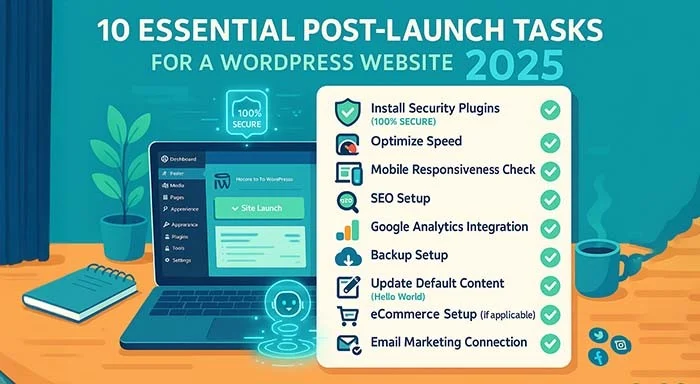


Creating a WordPress site is exciting, but launching your site is only the beginning. To ensure better security, performance, and search engine visibility, you need to configure several important settings immediately after installation. In this guide, we’ll cover the essential tasks every website owner should complete after setting up a WordPress site in 2026.
1. Set Your Site Title, Tagline, and Time Zone
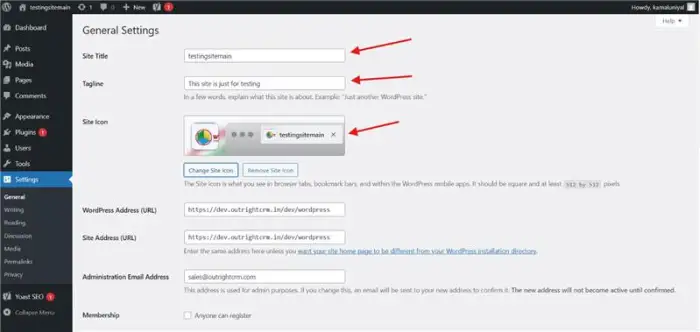
Fig: WordPress General Settings Panel
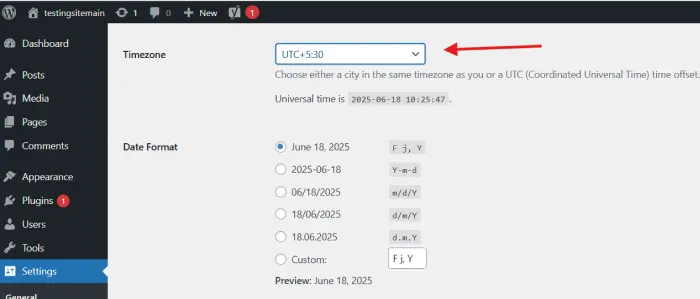
Fig: Site title, tagline, and time zone configuration fields are displayed on the WordPress General Settings page.
Go to Settings > General. Options to personalize your site title and tagline are here. These show up in search engine listings and browser tabs, so use clear, concise text that describes your brand or mission when you create a WordPress website.
Also, don’t forget to select the right time zone. This determines your schedule of posts, comments on time stamps, and plugin functionality. Select your local time zone or your target audience for more accuracy.
2. Configure Permalinks
The second essential setting to adjust right away is the permalink structure. In Settings > Permalinks, switch from the default “Plain” format to “Post name.” This tidies up your URLs, makes them SEO-friendly and easier to link to (e.g., https://dev.outrightcrm.in/dev/wordpress /blog/%postname%/.
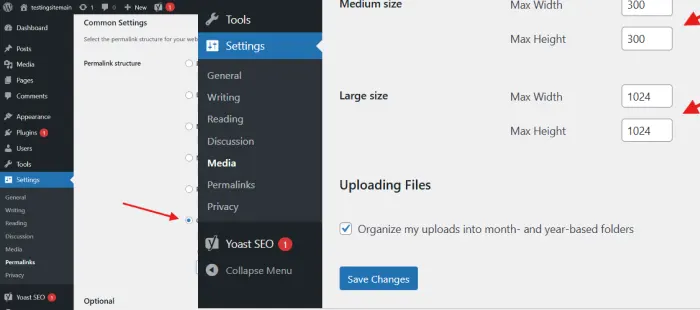
Fig: The “Post name” structure is chosen for SEO-friendly URLs in this screenshot of the WordPress Permalinks Settings page.
A later permalink change can result in broken links and SEO problems, so avoid doing so. Understanding the WordPress Directory Structure is crucial for implementing these URL changes effectively.
3. Create a Static Homepage
WordPress shows your most recent posts as the default homepage. If you are creating a WordPress Site for business or portfolio purposes, you might prefer a static front page.
To accomplish this, navigate to Settings > Reading and select “A static page.” Choose a page you have created as your homepage and another for blog posts if required. This provides greater control over the structure and user experience of your site.
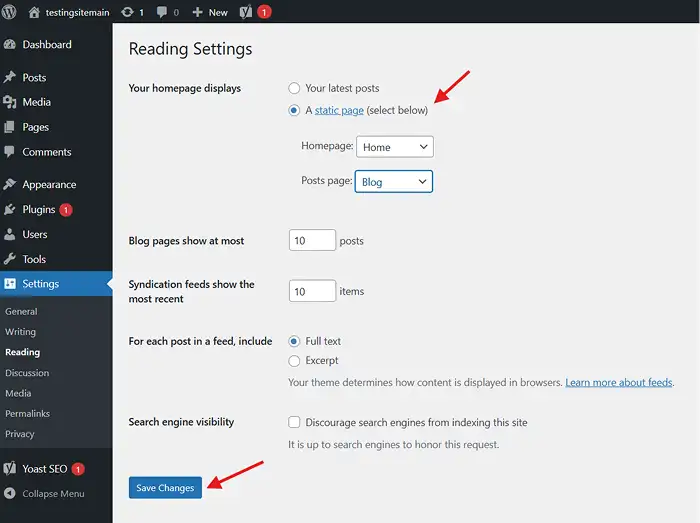
Fig: WordPress Reading Settings page showing the option to set a static page as homepage instead of latest posts.
4. Customize Discussion (Comment) Settings
WordPress has comments enabled by default not all sites require them. To make changes, go to Settings > Discussion.
Most important options to check:
- Disable comments on new posts if your site does not require them.
- Allow manual comment approval to block spam.
- Disable pingbacks and trackbacks if you do not see their value.
These settings regulate engagement and eliminate spam.
5. Set Media Settings
Navigate to Settings > Media to change the image sizes WordPress automatically creates when you upload an image. This is useful if you need to maximize site performance or block WordPress from generating excessive file sizes.
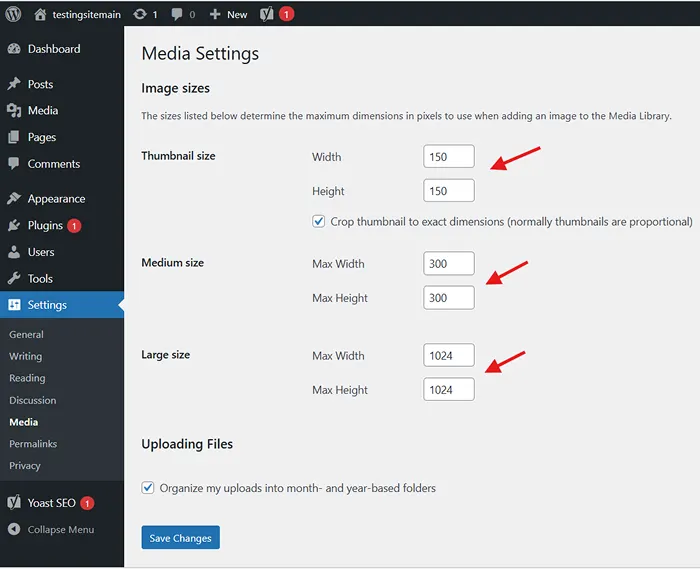
Fig: WordPress Media Settings page displaying image size configuration options for thumbnails, medium, and large images.
If you will be using a custom theme with exact image sizes, you may duplicate the settings here for uniformity.
6. Remove Default Content
Following a new install, WordPress comes with placeholder content: a dummy post, page, and comment. Remove these in Posts > All Pages and Comments to begin from scratch and appear more professional.
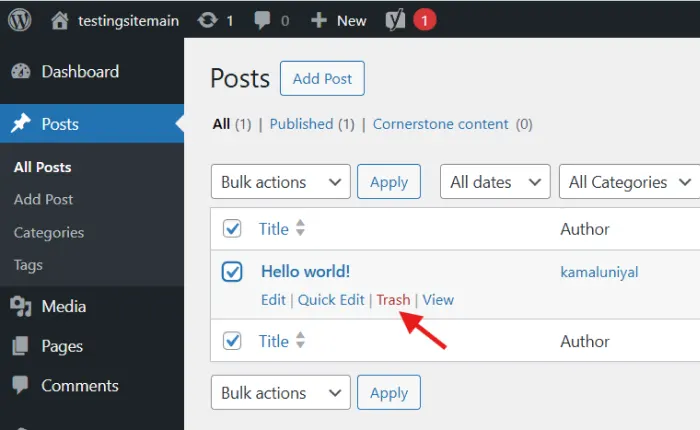
Fig: WordPress Posts/Pages management interface showing default content that needs to be removed for a professional appearance.
7. Update Admin Display Name and User Profile
In Users > Profile, ensure your display name and profile are updated. This is particularly important if your site displays author names on posts—having a generic “admin” appearance is amateurish and can be a security hazard.
Additionally, enable two-factor authentication (2FA) for your administrator account to improve login security and protect your website from unauthorized access.
8. Install the Required Plugins
Despite WordPress’s inherent strength, plugins expand its functionality. Install the required plugins listed below:
Yoast SEO or Rank Math – Increase your site’s SEO and manage meta tags.
Akismet Anti-Spam – Stop spam comments.
WP Super Cache or W3 Total Cache – Boost site speed.
UpdraftPlus – Set up automatic backups.
Wordfence Security – Add a second layer of security to your site.
9. Set Up Your Design and Theme Customization
To access the theme customiser, select Appearance > Customise. You can configure your menus, widgets, colours, fonts, and logo here.
Make sure your theme is responsive (mobile-friendly) and an accurate representation of your brand’s personality. Avoid using many fonts and colors so that your design doesn’t get cluttered and unprofessional. To Master WordPress Setup, keep it simple by creating a unified visual identity for your brand.
10. Organize Your Menu Structure
Navigate to Appearance > Menus and define a custom navigation menu. Include your priority pages (Home, About, Blog, Contact, etc.) and group them sensibly when you make your website user-friendly.
Mark the box to identify the menu to the right place (e.g., header or footer) based on your theme.
11. Install an SSL Certificate and Force HTTPS
Website security should be a priority from day one. An SSL certificate encrypts data transferred between your website and visitors, making your site more secure and trustworthy. It also helps with SEO rankings since Google favors HTTPS-enabled websites.
Most hosting providers offer free SSL certificates through Let’s Encrypt. After activation, ensure that WordPress uses HTTPS URLs under Settings > General and install a plugin like Really Simple Security if needed to force secure connections across your site.
A secure website improves user confidence and protects sensitive information such as contact forms, login credentials, and customer data.
12. Set Up Regular Backups and Automatic Updates
Many website owners ignore backups until something goes wrong. Setting up automatic backups immediately after launching your WordPress site can save hours of work if your website experiences technical issues, malware attacks, or accidental deletions.
You can use plugins like UpdraftPlus or your hosting provider’s backup solutions to create scheduled backups. It is also recommended to enable automatic updates for WordPress core files, themes, and trusted plugins to maintain security and performance.
Regular maintenance ensures your website remains stable, secure, and compatible with future WordPress releases.
Conclusion
WordPress websites are easy to set up, but proper configuration requires some attention when you create WordPress websites. These initial configurations set the stage for a safe, search engine-optimized, and user-friendly website. You will avoid future headaches if you take the time to get them right from the beginning.
FAQs
1. What should I do immediately after creating a WordPress website?
After creating a WordPress website, you should configure your site title, set SEO-friendly permalinks, install essential plugins, create a static homepage, enable backups, and secure your site with SSL and security plugins.
2. Which plugins are essential for a new WordPress website?
Some essential plugins include:
- Yoast SEO or Rank Math for SEO
- Wordfence Security for protection
- UpdraftPlus for backups
- WP Super Cache for performance
- Akismet Anti-Spam for comment moderation
3. Can I change permalinks after publishing my website?
Yes, but changing permalink structures after publishing content can create broken links and negatively impact SEO. It is best to set your preferred permalink structure before adding pages and blog posts.
4. Why is my WordPress plugin not functioning properly?
Several reasons can cause plugin issues, including compatibility problems, outdated software, or theme conflicts. You can read our detailed guide on plugin not working in WordPress to troubleshoot common problems and fix them effectively.
5. Do I need coding knowledge to manage a WordPress website?
No, WordPress is designed for non-technical users. However, learning basic web development concepts can be helpful. If you’re interested in improving your technical skills, you can explore our guide on best coding challenges for beginners to build practical experience.