


 Share on media
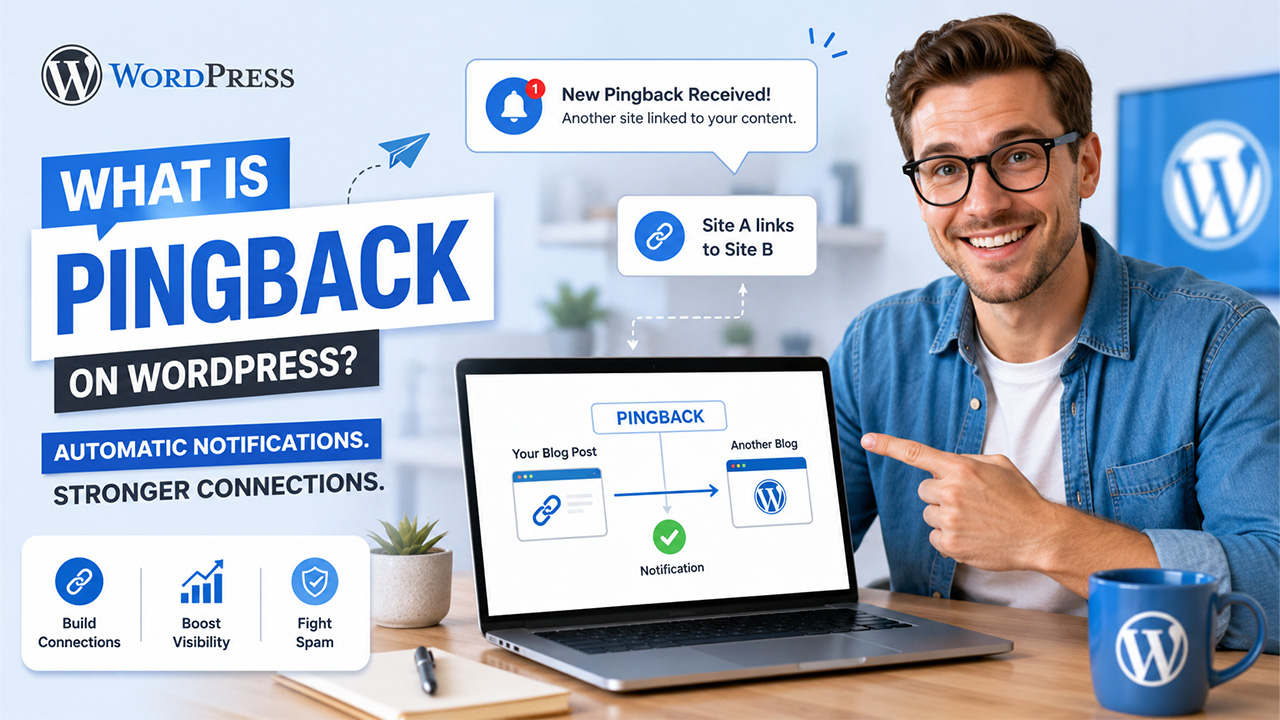


If you manage a self-hosted blog, you must have probably seen a peculiar comment visible under one of your posts. However, that is actually not a comment. That is essentially a pingback. What is pingback on WordPress and why is it important for your website? In straightforward terms, it is an in-built notification system that allows bloggers to know when someone has linked to the content of the blogger. In this guide, let us breakdown how it operates, how it compares to a WordPress trackback, and how you can handle it on your own website.
What Is a Pingback on WordPress?
A WordPress pingback refers to an automated alert system that WordPress sends when one blog is linked to another blog, and the pingback feature is enabled on both blogs. It quietly works in the background, without any manual work from the writer’s side.
Here is the core idea:
- Blogger A publishes a blog post and links to the article posted on Blogger B’s website.
- WordPress sends a signal to the website of Blogger B, notifying them of the link.
- Blogger B’s site validates that the link exists, and the pingback becomes visible as a special type of comment.
Contrary to a regular comment, a pingback does not comprise the own message of the visitor. It just confirms that there is a connection between the two posts. This makes it a low-effort and helpful way to track who is referencing your own content. It is one of the key reasons why pingbacks have become an important part of WordPress from its earliest versions.
How Does WordPress Pingback Operates?
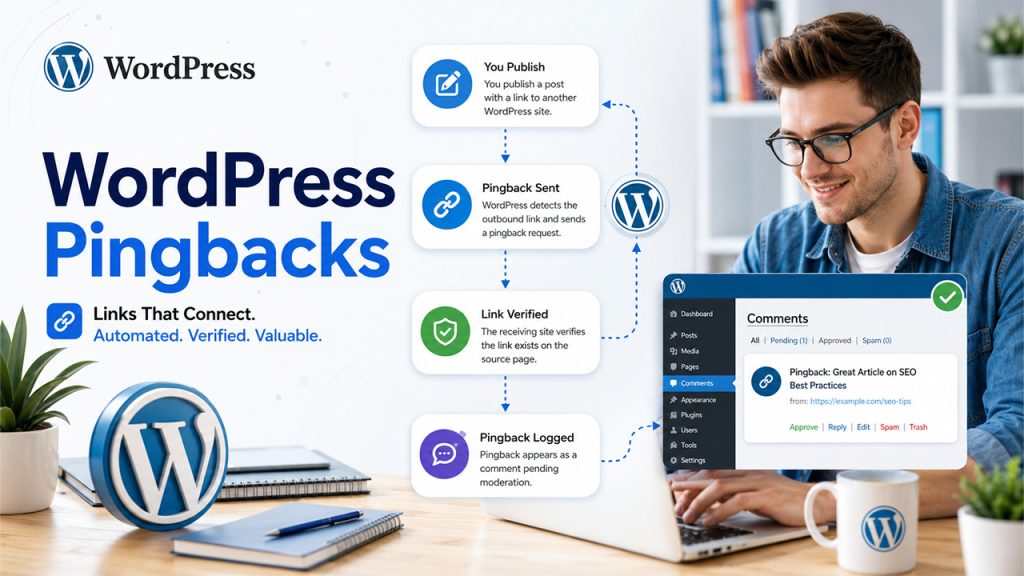
Once you become familiar with the standard definition, it is crucial to understand the mechanics behind it. A pingback depends on the background process that operates every time you update a post or publish a content comprising of outbound links.
The process often unfolds like as follows:
- You publish your post that involves a link to another website hosted on WordPress.
- WordPress finds the outbound link and sends a pingback request to the linked server of the website.
- The receiving site goes through the source URL to make sure that the link exists genuinely on the referring page.
- Once verified, the pingback is logged as a comment awaiting moderation (unless auto-approval is enabled).
This step of verification is extremely significant. It stops websites from simply claiming a pingback without any proof though it does not prevent spam fully, since a few bots can exploit the system still. Site owners generally moderate pingbacks in the same way through moderate any other comment. They can approve the genuine ones and discard the ones that look like suspicious entries.
If your intention is to start blogging, it is important to know this feature is enabled by default in most of the WordPress installations. Thus, your posts may create pingbacks as soon as they become live.
Pingback vs Trackback: What Is the Main Difference?
People generally utilize the two terms interchangeably. However, there are actual distinctions between the two terms. Comparing pingback vs trackback is helpful if you are confused about which notification method suits your workflow:
- Automation: Pingbacks are automatically sent by WordPress. Trackbacks must be manually sent by the author, often by pasting a trackback URL into a particular field before publishing.
- Content sent: A pingback only gives confirmation that link is there; it does not send back any text. A trackback often involves a short excerpt from the linking page.
- Verification: Pingbacks involve an in-built check that confirms that the link is real before it is approved. Trackbacks do not have the same step of verification, which is a core aspect of why they become more susceptible to spam over time.
- Compatibility: Pingbacks mainly works between WordPress websites or platforms that provide support to the same protocol. Trackbacks have become older and were created to work across a broad range of blogging platforms, including the ones that are older than WordPress.
Practically, most modern blogs depend on pingback instead of trackbacks, since the automated process saves time and needs no additional steps from the writer.
How to Disable or Manage Pingbacks in WordPress?
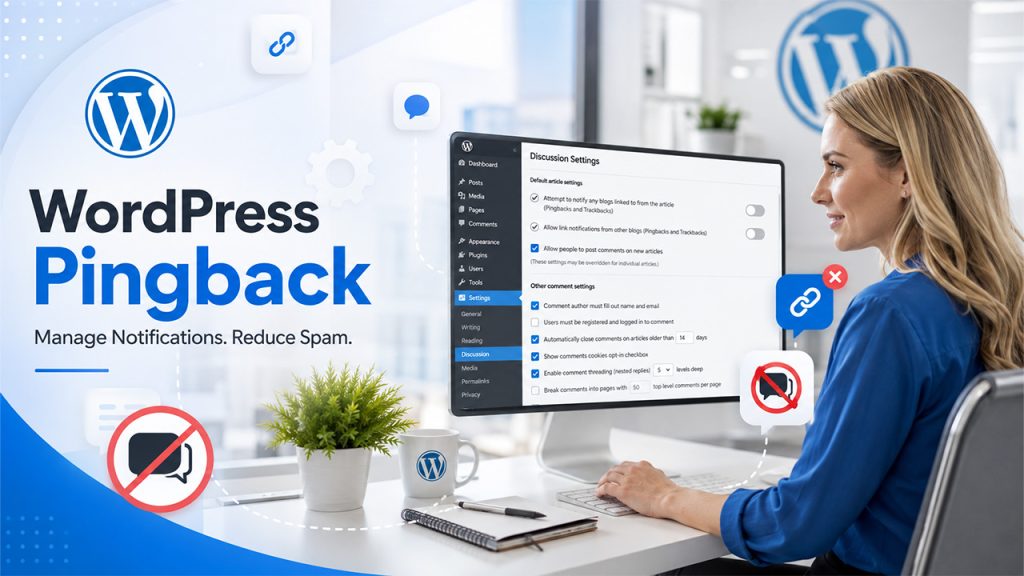
Pingbacks are not mandatory, and numerous website owners decide to turn them off, specifically if spam becomes a problem. WordPress provides you with control at both the website level and individual post level.
To disable pingbacks across the website:
- Proceed to “Settings” and then choose “Discussion” in your WordPress dashboard.
- Uncheck the option that allows WordPress to send notifications to other blogs when you link to them.
- Uncheck the option that enables link notifications (pingbacks and trackbacks) from other websites.
- Save your changes.
To disable pingbacks on a single post, open the post editor, locate the Discussion panel, and turn off pingbacks before publishing. This is useful if you want the feature to be active for most of the content but excluded from a specific page.
If you handle content across numerous websites or manage publishing on behalf of clients, ensuring pinback settings is important as much as approvals and outreach. Platforms built for Publisher Management Software workflows can enable teams to monitor such settings along with link management and content tasks.
It is also worth keeping in mind that payback settings are just one aspect of maintaining a seamless publishing setup. If you handle a website created on a different platform, you should be mindful of the fact that account access operates differently. For example, our detailed Weebly Login Guide explains the sign-in steps for that builder, which is a good comparison point if you are assessing WordPress against other platforms for future projects.
Conclusion
A WordPress pingback is a straightforward but efficient way for blogs to send notifications to each about the linked content, without needing any manual work from the author. While there are a few similarities with a WordPress trackback, the two are different in terms of how they are triggered, what information they possess, and how reliably they can be verified. Now that you understand what is pingback on WordPress, you can choose whether to keep feature active, carefully moderate it, or disable it entirely depending on how much link activity or spam activity your website is attracting.
Frequently Asked Questions :
What is a pingback on WordPress?
A WordPress pingback is an automated notification sent when one website links to content on another WordPress site. The receiving website can verify the link and display the pingback as a special type of comment.
How does a WordPress pingback work?
When you publish content containing a link to another WordPress website, WordPress sends a pingback request to the linked site. The receiving site checks whether the link actually exists before adding the pingback for moderation.
What is the difference between a pingback and a trackback?
Pingbacks are automatically generated when WordPress detects a link, while trackbacks generally require the author to send the notification manually. Pingbacks also verify that the referenced link exists, whereas traditional trackbacks offer less verification.
Should I disable pingbacks in WordPress?
You can disable pingbacks if your website receives excessive spam or you simply don’t need link notifications. WordPress lets you manage pingbacks globally through Settings → Discussion or disable them for individual posts.
Are WordPress pingbacks useful for SEO?
Pingbacks can help you monitor websites that link to your content, but they should not be considered a direct SEO ranking factor. Their main value is helping site owners track references and manage link activity.