


 Share on media
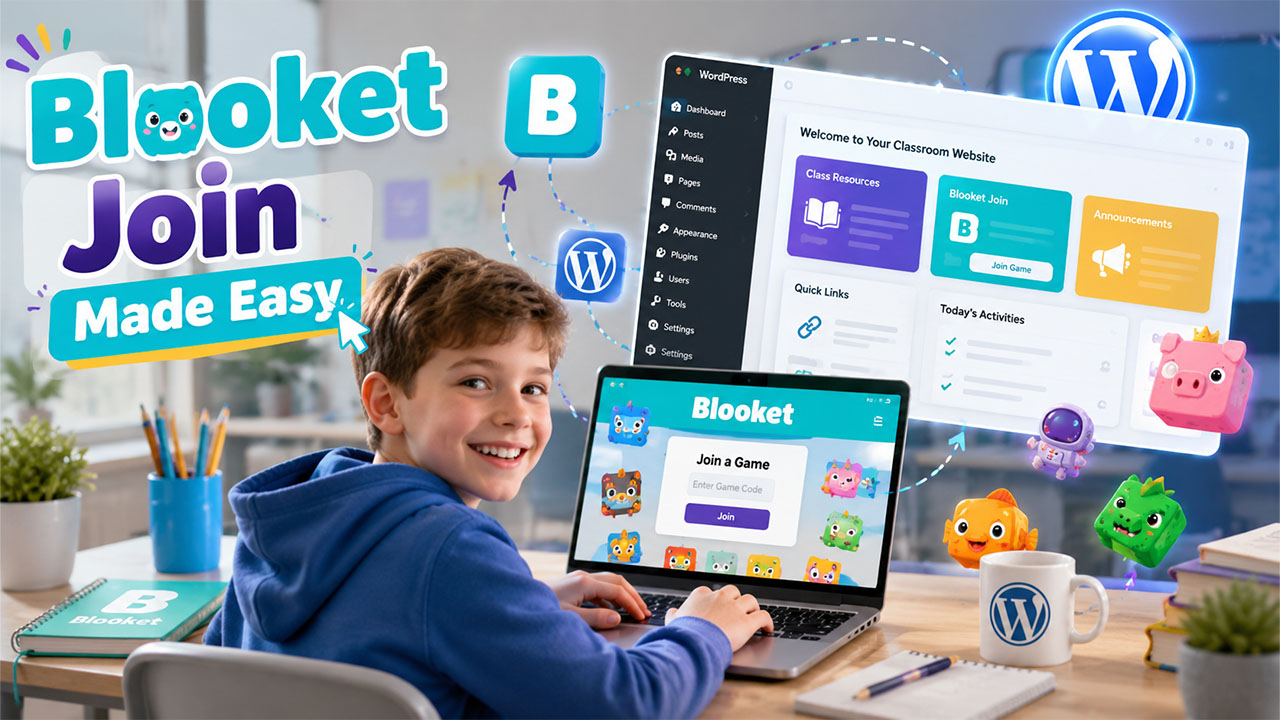


Your teacher asks you to go to Blooket and enter the code. However, thirty seconds later, half the class is still typing the incorrect URL, someone lands on the wrong page, and another kid is confused between blooket.com and blooket.com slash join. By the time everyone’s actually in the game, you’ve wasted two minutes of a fifteen-minute review session. This is more of a setup problem, rather than the blooket problem. And your WordPress website can fix this easily.
This happens in classrooms every single day, across every grade level. Most teachers just brush it off since it only takes a couple of minutes. But those couple of minutes when repeated across every class period, adds up to real teaching time lost over a school year. This blog will show you exactly how to add Blooket Join to your WordPress site, so students can jump into a game with one click instead of typing a URL from memory.
What Is Blooket Join?
Teachers use it to make quiz and review sessions more interesting that makes students actually want to play and give their best. Blooket join is simply the page where students go to enter a game code and jump into that session without any login. It’s fast by design. The problem is that “fast” only works if students land there instantly, and right now, most classroom sites make them struggle for it.
How to Create a WordPress Educational Website Before Adding Blooket Join
You need an actual educational website before you can add anything like Blooket Join on it. Don’t know how to make a WordPress website? Follow these steps:
- Choose the Right Domain Name and Web Hosting: Pick something short and easy to remember, such as something close to your school or class name. Then, sign up with a hosting provider to get your site online.
- Install WordPress on Your Hosting Account: Most hosting providers allow you to install WordPress with one click from your dashboard. You’ll get a login for your admin area right after.
- Select an Education-Friendly WordPress Theme: Select themes that are built for schools. So, you already get layouts for things like class schedules, staff pages, and announcements instead of starting from a blank page.
- Create Essential Pages for Your Educational Website: Set up a homepage, an about page with contact details, a resources page for daily updates and homework, and a blog section for announcements. These covers almost everything you need.
- Install Essential WordPress Plugins: For more control design, install important plugins like a security plugin, a caching plugin for speed, and a page builder. They are usually enough to start. If you’ve never done this before, a quick guide on how to install WordPress plugins makes the whole process a lot less confusing.
- Customize Your Website and Publish It Live: Once everything looks the way you want, publish it, and your site’s ready for the next step.
Now that your educational website is live and running, you’re ready to add Blooket Join to it.
4 Easy Ways to Add Blooket Join to Your WordPress Website
Once your WordPress educational website is ready, you can integrate Blooket Join using any of these simple methods.
Method 1: Add a Blooket Join Button or Link
It is the fastest option if you just want to make something work today.
- Open the page where you want the button, add a new “Button” block.
- Type in your text, something like “Join Blooket Game.”
- Click the button, add the Blooket Join page link, and confirm it.
- Publish the page, then test the button yourself to make sure it works.
Method 2: Embed the Blooket Join Page on Your Website
It shows the join page right on your site, so students never have to look for it.
- Add a “Custom HTML” block to your page.
- Paste in the embed code (an iframe snippet that shows one page inside another).
- Preview it to confirm it’s displaying correctly, then publish it.
Method 3: Add Blooket Join to Your Classroom Portal Page
Adds Blooket Join to a page that students already check daily.
- Open your existing classroom resources page.
- Add a Button block near the top, linked to Blooket Join.
- Label it clearly, like “Today’s Blooket Game,” and save.
Method 4: Add Blooket Join Using a WordPress Page Builder or Shortcode
It saves you time when you manage multiple class pages simultaneously.
- Build the button once in Elementor, WPBakery, or similar.
- Save it as a reusable block, template, or global element.
- Reuse it across any class page in a couple of clicks.
If you are new to this, start with the simple button. Once you get familiar, the other methods will stop feeling overwhelming.
Best WordPress Education Plugins for Blooket Join Integration
The right WordPress plugins can make your Blooket Join setup more organized, reusable, and easier for students to access. If you’re still getting comfortable with the basics, it helps to start with understanding WordPress plugins before picking one for your site.
A few plugin types that are worth looking at:
- LMS Plugins: LearnDash or Tutor LMS are popular LMS plugins, which let you build out full course structures and still drop in quick links like Blooket Join wherever they fit.
- Button and CTA Plugins: These give you more design control over how your Blooket Join button actually looks, such as you can make the corners round or pick the color that matches your school branding.
- Page Builder Plugins: Elementor or WPBakery make it easy for you to reuse the same Blooket Join setup across multiple class pages without having to rebuild it from scratch each time. This saves time and increases productivity.
- Widget or Shortcode Plugins: They are useful if you want the join button to show up in a sidebar or footer, so it’s basically always visible, no matter what page a student is on.
Using these is completely optional. None of these are mandatory. In fact, a single button works fine for most classrooms. However, if you’re already managing a full WordPress LMS setup, integrating Blooket Join with these just makes the whole system feel less scattered.
How to Fix Common Blooket Join Setup Issues on WordPress
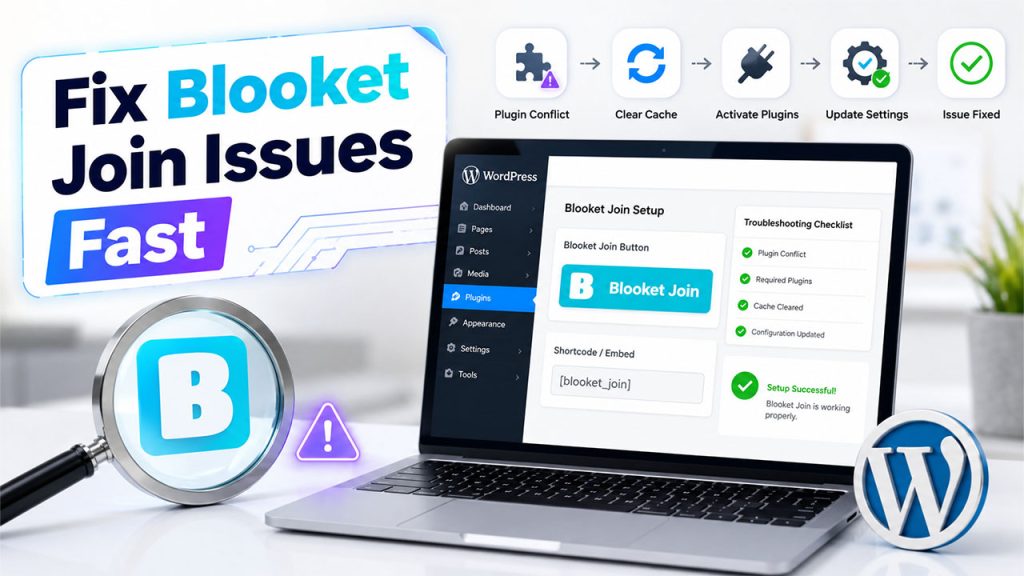
If your Blooket Join button or embed isn’t working as expected, these quick fixes can help you resolve the most common issues.
- Check the Setup Before Troubleshooting: If everything looks configured correctly and it still doesn’t run. Don’t just give up. Give it a second look before concluding that it failed and won’t work.
- Resolve WordPress Plugin Conflicts: The reason for most embeds issues is because of the conflict between two plugins over the same space. It does not necessarily mean that Blooket link is broken.
- Verify That Required Plugins Are Active: It may sound obvious but most of the time, a number of “broken” buttons are just plugins that got deactivated during an update. Check out those plugins and confirm if they are actually active. The same logic applies if you’ve ever dealt with plugins not working Minecraft, the fix is rarely as serious as it first looks.
- Clear Your Website Cache and Test Again: Caching can be another issue that you might encounter. If you’re using a caching plugin, it is possible that your latest changes did not load, and you’re still seeing the old version of your page.
- Retry the Setup After Refreshing the Configuration: Sometimes the fix really is just turning it off, waiting a moment, and trying again with fresh settings. It’s the same patience needed when
reawakening Minecraft server that’s gone quiet; a restart often does more than you’d expect.
What a Successful Blooket Join Setup Looks Like
When a student opens your class page, they see one clearly labeled button, “Join Blooket Game”. They immediately click on it without having to look for a URL, ask a classmate for help, and lose focus before the game even begins. It is more than just making your website fancier. It’s about removing that one obstacle that’s quietly wasting your actual teaching time every single day.
Conclusion
It is not complicated to add Blooket Join. You can use a button, widget, or a spot inside your existing WordPress LMS setup to get the job done. The goal is to make your students spend their time playing and learning instead of typing a URL they don’t remember properly. Once you set it up, you’ll notice that class starts faster than it used to.
And that small shift matters more than it seems. A student who joins the game in two seconds is a student who’s still paying attention when the questions start. The ones who lose focus because they are hunting for a link often stay distracted for the rest of the game. Even when students come across tools or searches related to a Blooket bot, the real goal should remain simple: getting everyone into the game quickly and keeping the focus on learning. When you fix that entry problem, the class actually starts quickly, and everybody is paying attention.
Related blog: Quizalize: The Complete Guide to This Gamified Quiz Platform for Teachers
Frequently Asked Questions :
Q. Do I need coding skills to add Blooket Join to WordPress?
No, a simple button block or link is enough for most classroom sites.
Q. Can I add Blooket Join without an LMS plugin?
Yes, a single button or embedded link works fine on its own.
Q. Which WordPress education plugins work best with Blooket Join?
LMS plugins like LearnDash or Tutor LMS pair well if you want a more organized setup.
Q. Why isn’t my Blooket Join button showing up correctly?
It’s usually a plugin conflict or an inactive plugin, check both before assuming it’s broken.
Q. Can I reuse the same Blooket Join button across multiple class pages?
Yes, page builder plugins let you save it once and drop it anywhere you want.