


 Share on media
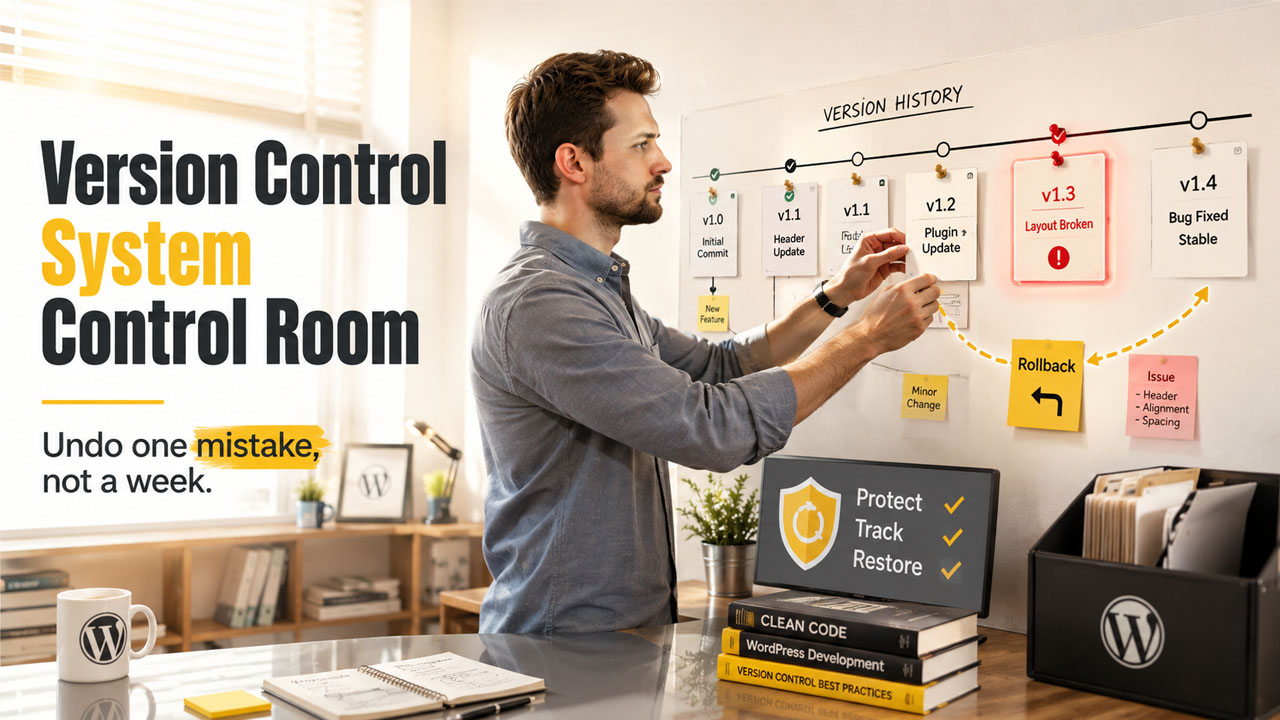


It’s early in the morning, and a developer is looking at a broken homepage. Something changed but he couldn’t figure out what. It might be a plugin update, a stray line of code, or maybe a client just tweaked something, but nobody can say anything with certainty. One way to find out is to use a backup from last week, but restoring means you have to lose six days of legitimate work just to undo one bad edit. Is it really worth it? This is where most WordPress developers realize that a backup is not the same thing as a memory. That’s where version control systems come in. They do more than just protect the website. They remember every change on your website and every decision that was taken.
This blog covers what a version control system is, its benefits, how to use different version control systems to manage WordPress websites, what its limitations are, and practical tips to implement version control in WordPress effectively.
What Is a Version Control System in WordPress?
WordPress version control refers to the practice of tracking every change made to a website over time. This is significant because you can review, compare, or reverse those changes whenever it’s needed. It does not rely on a single static backup. Rather, it keeps a running history of a timeline of who changed what, when and why.
This concept isn’t new to WordPress. It comes from source code management, a discipline that’s been central to software development for decades. For a WordPress site specifically, version control can apply to several layers: the core files, themes, plugins, custom code, and even the content stored in the database. However, the underlying goal stays consistent, which is to trace and reverse the changes. It’s one of the simplest ways to bring real discipline and best coding practices into everyday WordPress development.
Key Benefits of Using a Version Control System for WordPress
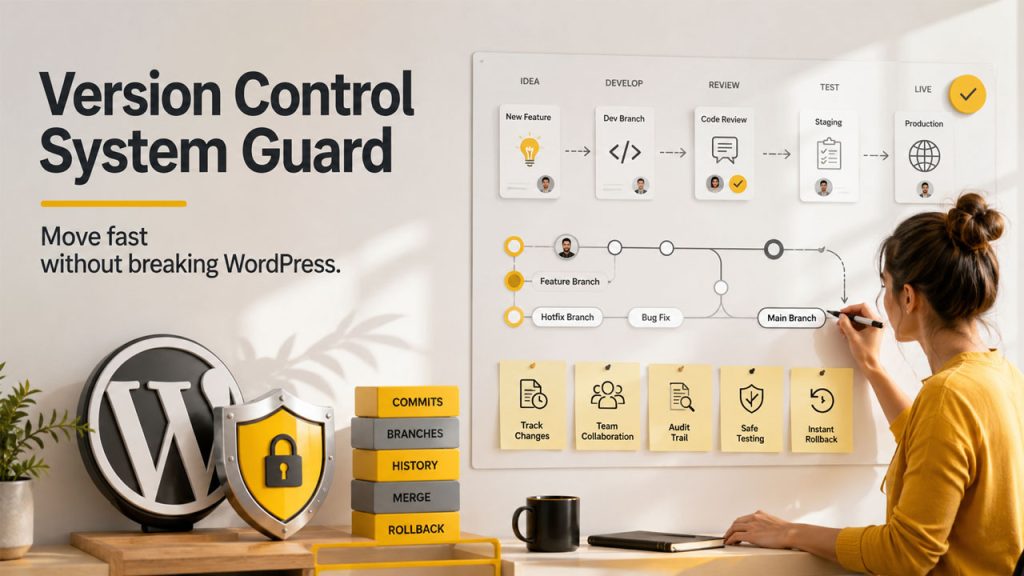
Let’s look at how version control helps developers manage WordPress websites. The following are a few benefits of a version control system:
Track Every Website Change: Version control monitors all changes that have been made to a website. Every edit gets logged, such as what was changed, by whom, and when. This means there is no more guessing which update broke the layout.
Team Collaboration and Code Management: Multiple developers can work together on the same project without overwriting each other’s work or creating any conflict, thanks to isolated development branches, merging tools, and code review.
Reliable Audit Trail for Every Update: The version history records all historical information of your WordPress website. This can come in handy during reporting, auditing, or when a new developer joins midway through a project.
Safe Experimentation Before Going Live: If you want to test changes or a risky plugin, you can do so in a separate development branch. The live site stays untouched until the change is proven safe.
Strengthen Website Security and Accountability: As we’ve learned above, version control stores all historical information. This information is useful when someone attacks your website or makes accidental changes to your website. This makes it far easier to identify the issue and fix it.
When you put this together, you get what real website version management looks like. It is not a single safety net, but an ongoing record that gives developers confidence to move fast without breaking things permanently.
How to Use a Version Control System for WordPress Websites
There’s no single “right” tool here. Most developers combine a few, depending on what part of the website they need to track. Here are the three most common approaches.
Using GitHub for WordPress Version Control
Git handles code such as themes, plugins, and custom functionality. However, it doesn’t track what content is typed into the WordPress editor, since that lives in the database. You can set it up in two stages:
- Creating the repository
- Connecting it to a deployment process
First, download the website’s files, then install Git locally, and finally, initialize a repository inside the WordPress directory using git init, git add., and git commit –m “first commit.” From there, the project gets pushed to a GitHub repository, and future changes are tracked every time new code is committed.
One thing people need to understand is that not everything should be tracked. Files like wp-config.php contain environment-specific settings, and the /wp-content/uploads/ folder fills up with media that has nothing to do with code changes. Both should be excluded using a .gitignore file. Many managed hosting providers now offer built-in Git integration, which simplifies deployment even further by letting developers push updates straight from their repository to the live site.
Read also: Top 5 DevOps Tools to Streamlining Modern Software Development in 2026
Using WP Rollback to Restore Themes and Plugins
WP Rollback is a plugin that is built specifically to revert themes and plugins to an earlier version without needing any Git knowledge at all.
Once you install and activate it from the WordPress plugin directory, it adds a “Rollback” option directly inside the Plugins and Themes screens. When any update breaks something, a developer can roll that single plugin or theme back to a previous, working version with just a couple of clicks.
Additionally, it is also essential to know what this tool doesn’t do. WP Rollback can’t help you with downgrading WordPress core itself. It does not affect any post or page content that’s handled separately by WordPress’s own revision history. You can think of this as a fast, low-effort safety net specifically for plugin and theme updates rather than a full version control replacement.
Using VersionPress for Complete WordPress Change Tracking
VersionPress combines Git’s tracking power with WordPress’s database, taking a more complete approach. It is something that neither Git nor a basic rollback plugin handles well on its own. It logs every change that is made to posts, pages, and settings along with plugin activity, then stores that history using Git underneath the hood.
After installation, VersionPress automatically begins tracking changes as they happen. There is no need for manual commits. Developers can browse a clean activity log that shows exactly what changed and undo individual actions without affecting unrelated content. This makes it especially useful for client sites where content gets updated constantly, and a simple “what changed since yesterday” answer saves real time.
This one is much heavier than the other two. It works best on sites where both code and content move frequently enough that tracking them manually is just not possible.
Git vs WP Rollback vs VersionPress: Which Version Control Tool Is Right for You?
Not every version control tool solves the same problem, so let’s compare Git, WP Rollback, and VersionPress to see which fits your WordPress workflow best.
| Tool | Tracks | Best For | Technical Skill Needed |
| Git / GitHub | Code, themes, plugins, custom files | Development teams, CI/CD workflows | High |
| WP Rollback | Theme and plugin versions only | Quick, low-risk plugin/theme reverts | Low |
| VersionPress | Code, database, content changes | Active client sites with frequent updates | Medium |
Common Limitations of Version Control Systems
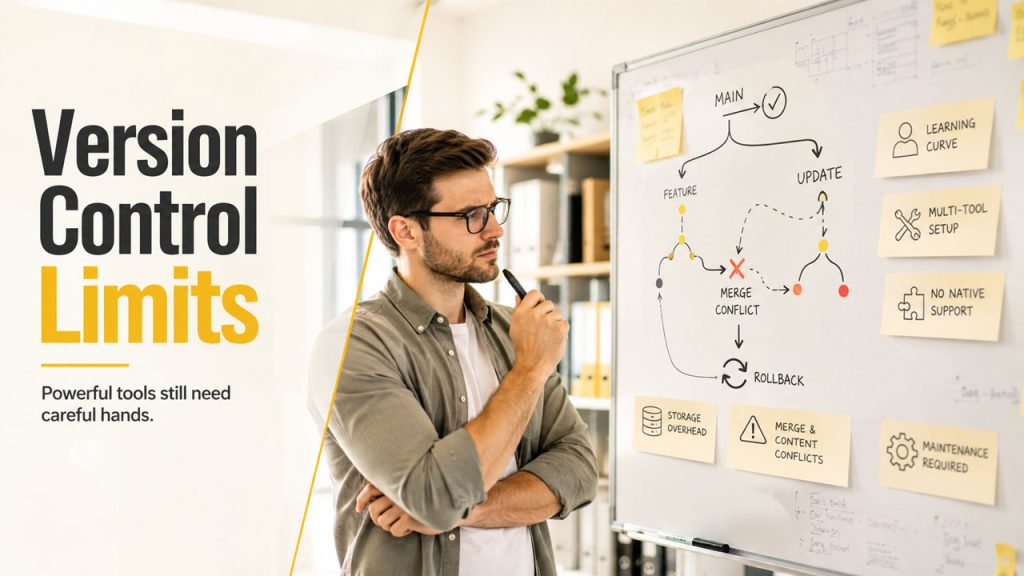
It sounds amazing to treat version control as a solution to everything. Unfortunately, it has real limitations that developers should pay attention to and plan around.
- The Learning Curve Can Be Challenging: It takes time to learn. Git in particular has its own vocabulary and commands that don’t seem intuitive at first, even though plugins are easier to use.
- No Single Tool Tracks Everything: There is no single tool that covers everything. If you want to track the full website, including code, plugins, and content, you have to combine more than one tool to get the job done.
- WordPress Lacks Native Version Control: Outside of basic post revisions, WordPress has no built-in version control, so third-party tools are non-negotiable for anything serious.
- Performance and Storage Overhead: Rollback plugins add server load, and storing too many revisions can quietly eat up database storage over time. This will slow down website performance.
- Merge Conflicts and Content Conflicts Still Occur: When multiple people edit the same branch or restore different content versions, conflicts arise, things can clash and cause errors if nobody catches it early.
- Additional Maintenance and Management Requirements: When you add one more system, it becomes another thing that you have to maintain, update, and keep secure.
It does not mean that version control systems aren’t worth it. It only implies that it needs a plan rather than a one-time setup and forgetful approach.
Best Practices for Implementing a Version Control System in WordPress
A few habits separate teams that use version control from teams that set it up once and quietly abandon it:
- Combine Tools for Complete Website Tracking: Code and content live in different places, so you must track them differently. Use Git to track changes in files, and a plugin or VersionPress for content and database changes.
- Test Changes in a Staging Environment First: Before pushing a rollback or a new deployment live, run it in a staging environment. This matters even more once a developer understands what a runtime environment actually does, since local and live environments rarely behave identically.
- Document Changes Alongside Version History: Version logs are great, but a quick note explaining why a change was made saves enormous time later, especially on a team.
- Choose Trusted and Actively Maintained Plugins: An abandoned rollback plugin is a vulnerability that is waiting to be exploited. Check update history before installing anything.
- Limit Stored Revisions to Prevent Database Bloat: Add define (‘WP_POST_REVISIONS’, n); to wp-config.php to keep the database from bloating with years of minor edits.
- Use Developer Communities to Solve Complex Issues: Git workflows and plugins often trip even experienced developers. Therefore, reach out to active Developer Communities, as they are often faster than documentation in solving edge cases.
Conclusion
Now, go back to the scenario that we discussed in the beginning. The story plays out differently when version control is in the picture. The developer checks the commit history, spots the exact change that broke things, and undoes just that one piece instead of the entire week’s work.
Version control systems don’t make WordPress development perfect or mistake-free. They make mistakes recoverable, collaboration sane, and make the entire development process something that is easy for developers to explain to a client or a teammate. Whether it is full Git workflows, a simple rollback plugin, or a hybrid tool like VersionPress, the goal remains the same: build a website that you can edit boldly, because you always know how to undo it.