
 Share on media
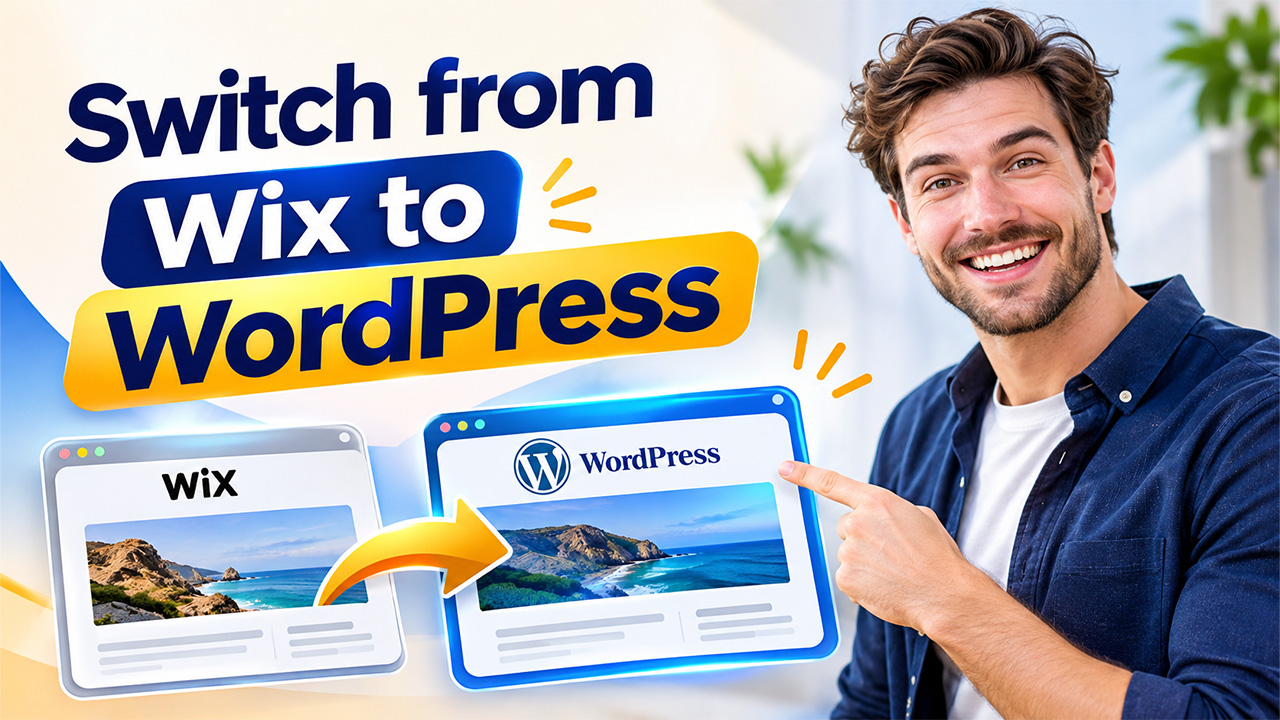


You built your website on Wix because it was quick and easy. Fair enough. But somewhere along the way, things changed. Maybe you wanted a feature the editor couldn’t give you. Maybe the monthly bill kept creeping up. Or maybe you realised that your content doesn’t really belong to you in the way you assumed.
If that sounds familiar, you’re in good company. More and more site owners decide to switch from Wix to WordPress once their business outgrows a template. The good news is that it’s far less scary than it sounds. With the right plan, you can move your pages, images and domain while keeping the rankings you’ve worked hard to earn.
If you’re still weighing your options, start with our WordPress vs Wix comparison to see both platforms side by side. Then come back here for the step-by-step migration plan.
Why Do People Switch from Wix to WordPress?
Wix is a hosted, closed platform. That’s great for getting started, but it creates limits that only show up later. Here are the most common reasons site owners leave.
1. Ownership and lock-in. On WordPress, you own your files, your theme and your data. You pick your hosting and can move whenever you like. On Wix, your site lives inside Wix’s system, and a full export of your design simply isn’t possible.
2. Limited SEO control. Wix has improved its SEO tools, but WordPress still gives you deeper control over URL structure, schema, redirects and page speed. If organic traffic matters to your business, this is a big deal.
3. Plugins and flexibility. Need memberships, bookings, a custom store or a forum? WordPress has thousands of plugins and themes for that. With Wix, you wait for the vendor to build it.
4. Cost over time. Premium Wix apps and plan upgrades add up. WordPress is open source, so your costs depend on the hosting and tools you actually choose.
5. Scalability. A basic template works on day one. Three years later, when you have hundreds of pages and real traffic, you want a platform that grows with you rather than one that holds you back.
New to the platform? Our beginner guide on what is WordPress explains how it works in plain language.
What to Do Before You Migrate
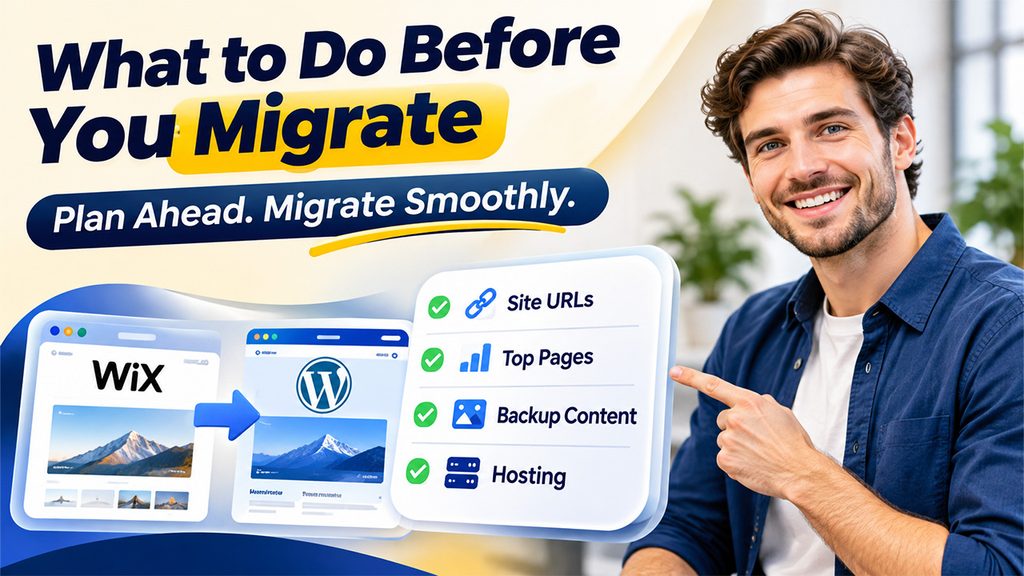
A smooth migration starts with preparation. Spend an hour on this checklist and you’ll avoid most problems later.
- Crawl your Wix site. Make a list of every URL, including pages, blog posts and product pages. A free crawler works fine.
- Record your top pages. Open Google Search Console and note which pages bring the most clicks. These need extra care.
- Back up your content. Save your images, text and any product data.
- Keep your Wix plan active. Don’t cancel anything until the new site is live and tested.
- Choose your hosting. Pick a reliable host, or use a managed setup so you don’t have to deal with servers yourself.
How to Switch from Wix to WordPress: Step by Step
Step 1: Set Up Your WordPress Site
First, you need a clean WordPress installation. You can do it manually, but that means dealing with servers, databases and security settings. A faster route is a one-click WordPress setup, where the install, configuration and basic security are handled for you.
Step 2: Export Your Wix Content
Wix lets you export your blog posts, usually as an RSS or XML file. Products can often be exported as a CSV file. Static pages and your design can’t be exported, so those are rebuilt in WordPress. This is normal, and it’s actually a chance to clean up your site.
Step 3: Import Content into WordPress
Use the built-in WordPress importer to bring in your blog posts. Then check that categories, authors, dates and featured images came across properly. Download your images from Wix and upload them to your WordPress media library, compressing them as you go.
Step 4: Rebuild Your Pages and Design
Choose a lightweight, well-coded theme and recreate your key pages: home, about, services and contact. Don’t try to copy Wix pixel by pixel. Use this moment to improve speed, mobile layout and navigation.
Step 5: Match Your URLs
This is the step that protects your rankings. Wix blog posts typically live at addresses like /post/your-title, while WordPress uses a cleaner structure. Where possible, set your permalinks to match your old URLs. Where you can’t, set up 301 redirects from every old URL to its new one. A 301 tells Google the page has moved permanently, so the old page’s authority passes to the new one.
Step 6: Connect Your Domain
You don’t need to buy a new domain. Once your WordPress site is tested, point your existing domain to your new host by updating the DNS or nameservers. Propagation can take a few hours, so choose a quiet time of day for the switch.
Step 7: Test Everything
Click through your pages on mobile and desktop. Test forms, links, images and checkout if you run a store. Check that your redirects work, and make sure your site isn’t accidentally set to “discourage search engines” in the WordPress settings.
DIY or Done-for-You: Which Should You Choose?
If you have a small site with a handful of pages and you’re comfortable with technology, doing it yourself is realistic. Expect a weekend or two of focused work.
If you have a large blog, an online store, or traffic you can’t afford to lose, getting help is usually the safer and cheaper option in the long run. One missed redirect can cost you months of rankings. Our website to WordPress migration service moves your pages, images and domain for you, so nothing gets lost on the way.
How to Keep Your Google Rankings After Migrating
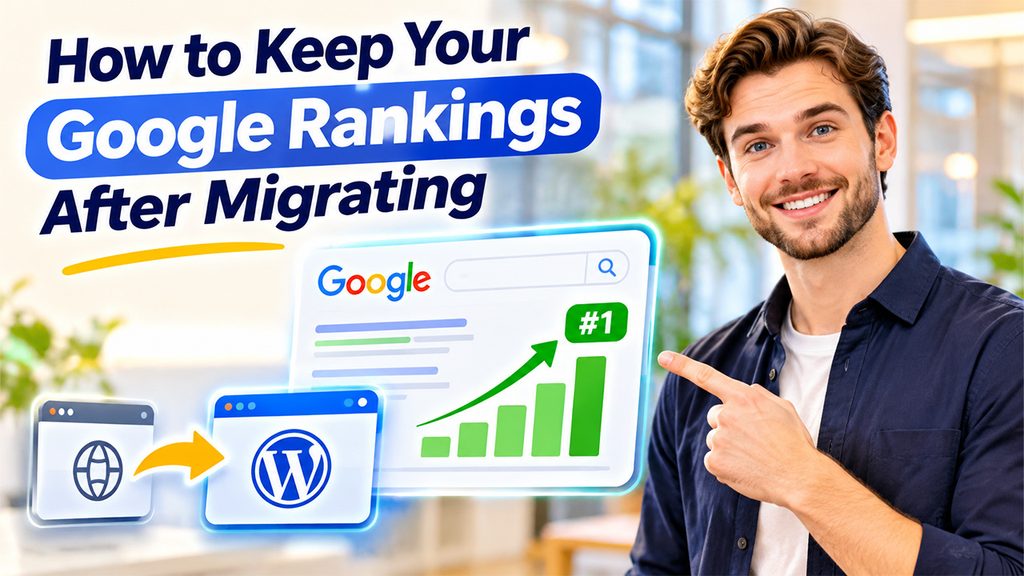
Most ranking drops after a migration come from avoidable mistakes. Keep these points in mind.
- Redirect every changed URL. Missing redirects are the number one cause of lost traffic.
- Keep your titles and meta descriptions. Carry them over exactly, at least at first.
- Submit a new sitemap. After launch, submit your WordPress sitemap in Google Search Console.
- Watch for 404 errors. Check Search Console weekly for the first month and fix anything that breaks.
- Improve page speed. A faster site often ranks better. Use caching, compressed images and clean code.
You can also handle most on-page SEO without extra tools. Here’s a practical walkthrough on how to do WordPress SEO without a plugin.
Expect small ranking fluctuations for a couple of weeks. That’s normal. If your redirects and content are in place, rankings usually settle back, and often improve, within a few weeks.
Don’t Forget Security and Maintenance
Here’s one thing Wix handled quietly in the background: security and updates. On WordPress, that responsibility is yours, or your provider’s. It’s not difficult, but it does need attention. Keep your plugins and themes updated, use strong passwords, and run regular backups. If you’d rather not worry about it, our WordPress maintenance and support team takes care of updates, backups and security after your site goes live.
Final Thoughts
Deciding to switch from Wix to WordPress is really a decision to own your website. You get freedom over design, hosting, SEO and growth, without waiting on a platform to allow it. With a clear plan, correct redirects and careful testing, your visitors and Google will barely notice the move, except that your site will probably feel faster and better.
Ready to make the move? Visit WP-1Click to explore our WordPress services, or contact our team and we’ll handle the migration for you.
Frequently Asked Questions
You can do it yourself without paying for migration tools, though you'll still pay for hosting and possibly a theme. The cost is mostly your time.
No. You can keep your existing domain and simply point it to your new WordPress host.
Not if you do it correctly. With matching URLs or proper 301 redirects, your rankings should hold and may improve.
A small site can be done in a day or two. Larger sites with many pages or products can take a week or more.
For long-term growth, ownership and SEO control, most site owners find that it is.