
 Continue with Google

 Share on media

Want to know how to add a server in MT5? Regardless of whether you have just created a new trading account or want to replace a broker, adding a correct server in your MetaTrader 5 account is essential. However, it is a simple task that approximately takes a few seconds to set up once you use the right approach.
But for the newcomers, the interface of MT5 can feel challenging sometimes. This comprehensive guide has solved this issue by compiling potential methods for mobile (Android/iOS), desktop (Windows/Mac), and the MT5 web terminal. Additionally, this blog discovers troubleshooting tips for common issues that traders can use to seamlessly find and add a server without any hassle.
Why Do You Need to Add a Server in MT5?
Before knowing how, it is worth considering why it is crucial. MT5 works by connecting to trading servers that are operated and maintained by individual brokers. Each broker, and sometimes even specific account types within the same broker, runs on its own server. When you create an account with a broker, you’ll receive a welcome email that usually includes three things:
- Login ID (your account number)
- Password
- Server name (something like BrokerName-Live or BrokerName-Demo01)
When to add a server in MT5:
- Signing up with a new broker
- Opening a second account (e.g., a demo account alongside a live account)
- Switching between a demo and live environment
- Running multiple accounts across different brokers simultaneously
If MT5 doesn’t know which server to connect to, it won’t be able to log you in — even if your username and password are perfectly correct. That’s the complete reason why you need to find and know how to add a server in MT5 manually and using tools.
Benefits of Adding a New Server
Accessing Multiple Accounts: By connecting to a new server, you can access several trading accounts across different servers, allowing you to manage multiple accounts and financial instruments efficiently.
Scalability: Virtual servers are scalable to deploy instantly across different accounts, making it suitable for brokers to handle large numbers of accounts.
Better Performance: A server-integrated MetaTrader 5 provides enhanced performance and reduced latency, ensuring the quick and accurate execution of trades.
Security & Control: Correct server provides complete control over resources, improving security and lowering the privacy risks.
PreRequisites: Things to Consider Before Starting
- MetaTrader 5 must be installed (desktop, mobile, or access to the web terminal)
- Your broker’s server name — check your welcome email or your broker’s website under “Trading Platforms” or “Account Details.”
- Your Login ID and password
If you can’t find the server name, contact your broker’s support team. They’ll provide it immediately.
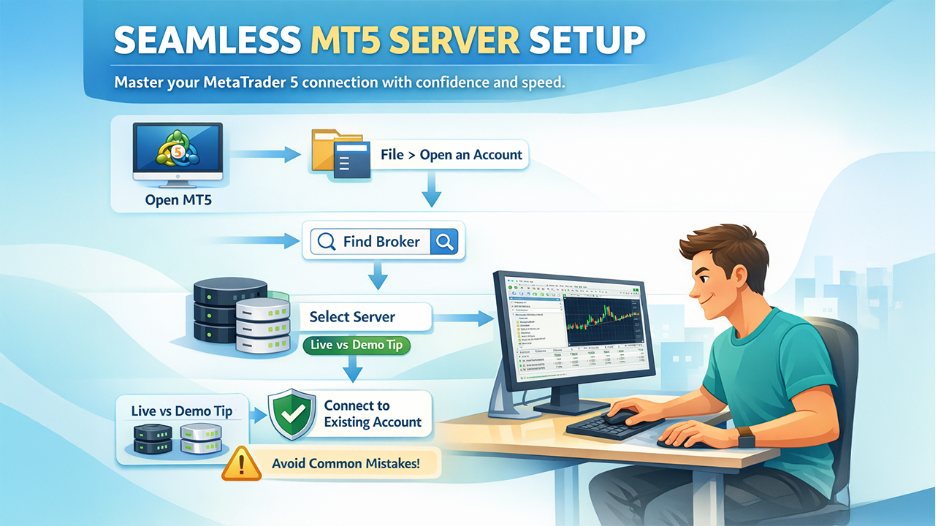
Method 1: How to Add a Server in MT5 on Desktop (Windows)
This is the simple yet commonly used method by traders for adding a server to a broker’s platform (e.g., MetaTrader4 or MetaTrader 5).
Step 1: Open MetaTrader 5 inside your VPS
Start the MT5 platform on your desktop. Logging in beforehand is not necessary.
Step 2: Go to File > Open an Account
At the top left corner of the platform, locate and click on the File menu. You will see a dropdown menu and then choose Open an Account. This opens the account registration window to locate and add your broker’s server.
Step 3: Look for Your Broker
Find the correct broker server by entering the name in the search bar. MT5 will scan its database of registered brokers and show matching results. Then choose your broker from the list.
Step 4: Select Your Server
After confirming the broker, you’ll see a list of available servers (e.g., BrokerName-Live, BrokerName-Demo). Ensure choosing a server that matches with the one in your welcome email.
Important tip: If your broker provides both live and demo accounts, make sure you’re choosing the correct one. Logging into a live account when your goal is to use a demo — or vice versa — is a surprisingly common mistake.
Step 5: Connect to an Existing Account
From the next screen, select Connect to an Existing Account option. Type your Login credentials (username and password), then click Finish. MT5 will connect to the server and log you in.
How to Manually Add a Server in MT5
In most cases, especially with smaller or location-based brokers, your broker’s server won’t display in the MT5 database. In such a case, you can manually add a server in MT5 account.
Step 1: In the File menu, click Open an Account, in the window, scroll to the bottom of the broker list.
Step 2: Locate the “+” icon or the option “Add new broker” which allows you to add a server manually.
Step 3: Enter the server name or IP address, the same as given by your broker. For example: BrokerName-Real22 or an IP like 192.168.0.1:443.
Step 4: Click Enter or click Scan after entering the details carefully. MT5 will then process to find the server. Once the process is completed, choose it and proceed to login using your account credentials as normal.
Note: Server names are case-sensitive. Make sure of any error, as a simple typo will prevent MT5 from detecting the server, so copy the name directly from your broker’s email or website.
How to Add a Server in MT5 Using Tools > Options
Adding a server using dedicated tools is the faster method. This method is only applicable if you already know the server name and just want to register in the MT5 account settings.
Step 1: Launch MT5 and navigate to Tools > Options (or press Ctrl+O).
Step 2: Move to Server tab.
Step 3: In the server field, enter the domain name or IP address of your broker’s server, also the port, if necessary, like BrokerName-Real22:443.
Step 4: Click OK. The server is now registered in your platform’s server list and will display as an option when you log in next.
Method 2: How to Add a Server in MT5 on Mobile (iOS & Android)
The process of adding a broker server to a mobile device is slightly different but just as straightforward, whether it’s Android or iOS.
Step 1: Open the MT5 platform on your phone.
Step 2: Click on the Menu icon (three horizontal lines) in the top right corner of the screen.
Step 3: Tap on Manage Accounts.
Step 4: Look at the top right corner, find and select a “+” icon.
Step 5: Then type your broker’s name in the search bar. MT5 opens a list of matching brokers, and their associated servers will appear.
Step 6: Choose your correct server from the list, depending on your account you are using for—live or demo.
Step 7: Type your login details, user ID and password, then click Sign in or Submit.
If the server doesn’t appear in the search results, it means your broker may not be registered in the MT5 mobile directory. In that case, you’ll need to use the desktop platform or download the broker-specific version of MT5 from the broker’s own website.
Method 3: How to Add a Server in MT5 Web Terminals
The MT5 Web Terminal runs directly in your browser without requiring any software installation. Changing or adding a server here is simple.
Step 1: Open your browser and navigate to the MT5 Web Terminal (usually linked from your broker’s website).
Step 2: On the login screen, look for the Server dropdown menu.
Step 3: If your broker’s server is already listed, select it. If not, look for an option to enter a server manually and type in the server name provided by your broker.
Step 4: Enter your login credentials and click Sign In.
After connecting, check the bottom-right corner of the terminal for a green connection status icon. If it shows green and prices are updating in real-time, you’re connected successfully.
How to Switch Between Servers (Multiple Accounts)
In today’s digital era, most active traders operate more than one account—it may be a demo account with one broker or a live account with another, or multiple live accounts for different strategies. MT5 managed this well, but knowing how to switch between these accounts is important.
Go to the Navigator panel placed on the left side of the desktop platform, right-click on Accounts, and click Open an Account. Follow the same steps as given above to add a server in MT5 account. When added correctly, it will display all accounts in the Navigator panel. Now you can switch between them by simply double-clicking on the account you want to activate.
Troubleshooting Tips: Common Server Connection Issues
- A “No connection” or “Invalid server” error
This error always appears if the server name was entered incorrectly. If the error occurs, double-check the exact spelling with your broker—make sure of capitalization and any numbers (e.g., Real01 vs. Real1).
- If the broker is not found in the MT5 database
Some brokers aren’t registered in the MT5 global databases, mainly the latest ones or regional firms. In such a case, download MT5 directly from your broker’s own website. Broker-specific builds come pre-configured with the broker’s servers and will find them automatically.
- Connection Fails Frequently
This is often a network problem rather than a server issue. If you’re operating an automated trading strategy (like Expert Advisors) and require 24/7 uptime, ensure using a Forex VPS (Virtual Private Server). A VPS ensures your MT5 is running continuously without any disruptions, independent of your local internet connection, with minimal latency to the trading server.
- “Invalid account” After Typing Correct Login Details
You’re likely connected to the wrong server type. If your account is a live account, make sure you’re not connected to a demo server, and vice versa. The server names are typically labeled clearly (e.g., -Demo or -Live / -Real).
- Firewall or antivirus blocking connection
MT5 utilizes port 443 by default. If your firewall is blocking this port, MT5 won’t be able to create a connection. Verify your firewall settings or temporarily disable your antivirus to test if that’s the issue. If it is, whitelist MT5 in your security software.
Final Thoughts
Adding a server in MT5 is a five-minute task once you’ve done it correctly. The most important thing is having the correct server name from your broker — that single piece of information is what makes the difference between a successful connection and a frustrating loop of error messages.
Whether you’re using the desktop platform, your phone, or the web terminal, the process follows the same logic: find the broker, select the server, and enter your credentials. If the server isn’t in the MT5 database, add it manually using the name or IP address your broker provides. These simple, quick steps help you determine how to add a server in MT5 account precisely and efficiently.
Once you’re connected, everything else, like charting, order execution, and running Expert Advisors, flows from that foundation. Get the server right, and the rest of MT5 opens up.
%201.png)

%201.png)

%201.png)